Although TV screens have increased significantly in size over the past several years while also staying affordable, very large sizes remain exclusive to high-end models that can cost several thousands. A projector is a good way to get around that limitation and portable projectors have seen a lot of interest from both manufacturers and public. The Soundcore Nebula P1 is a mid-range portable projector that offers a lot of flexibility and ease of use coupled with decent image quality and a unique feature in its category: a pair of detachable wireless speakers that can give you real stereo sound.
The Nebula P1 is a unique device in many ways. Readers who have been following the projector market for a while might notice how it is marketed under the Soundcore umbrella: this is due to the parent company, Anker, reorganising its market presence and integrating the Nebula brand into its brand system, though this does not entail any practical changes for users.
Disclaimer: I received a unit gratis directly from Soundcore. The P1 retails for $799.99 / £699.99. It is available for $639 until the 13th of September.
Soundcore Nebula P1 at a Glance
| Pros |
Cons |
| + Overall good picture quality
+ Detachable speakers that deliver good audio quality + Whisper-quiet fan + Excellent build quality + Android TV OS with plenty of applications, including official streaming platforms |
– Relatively low brightness
– Requires some adjustments to deliver the best picture quality |
Rating: 8/10
Packaging & Accessories
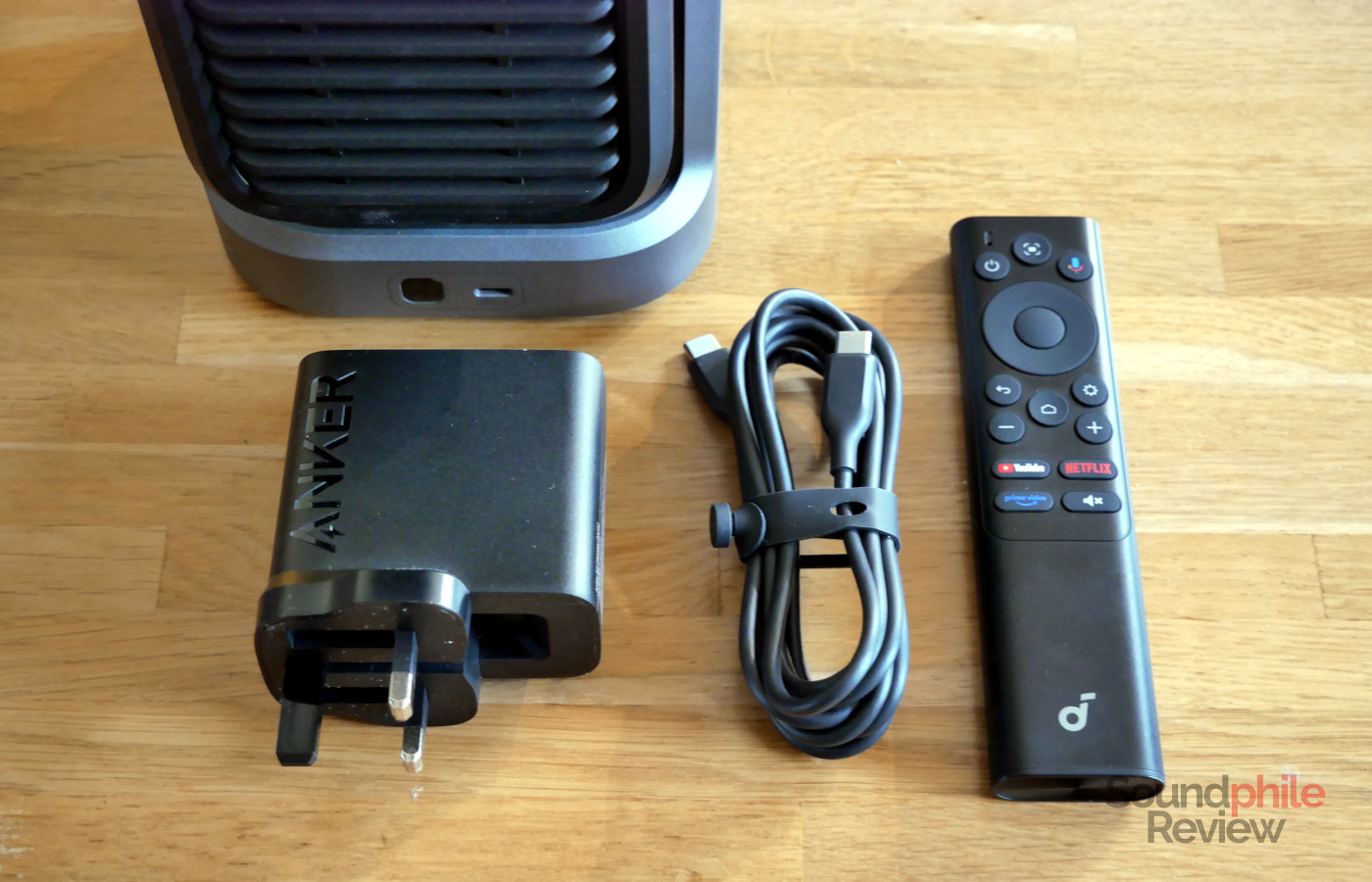
The Soundcore Nebula P1 comes with a 100 W USB-C power supply as well as a 2 m USB-C to USB-C cable and a remote.
Design & Build
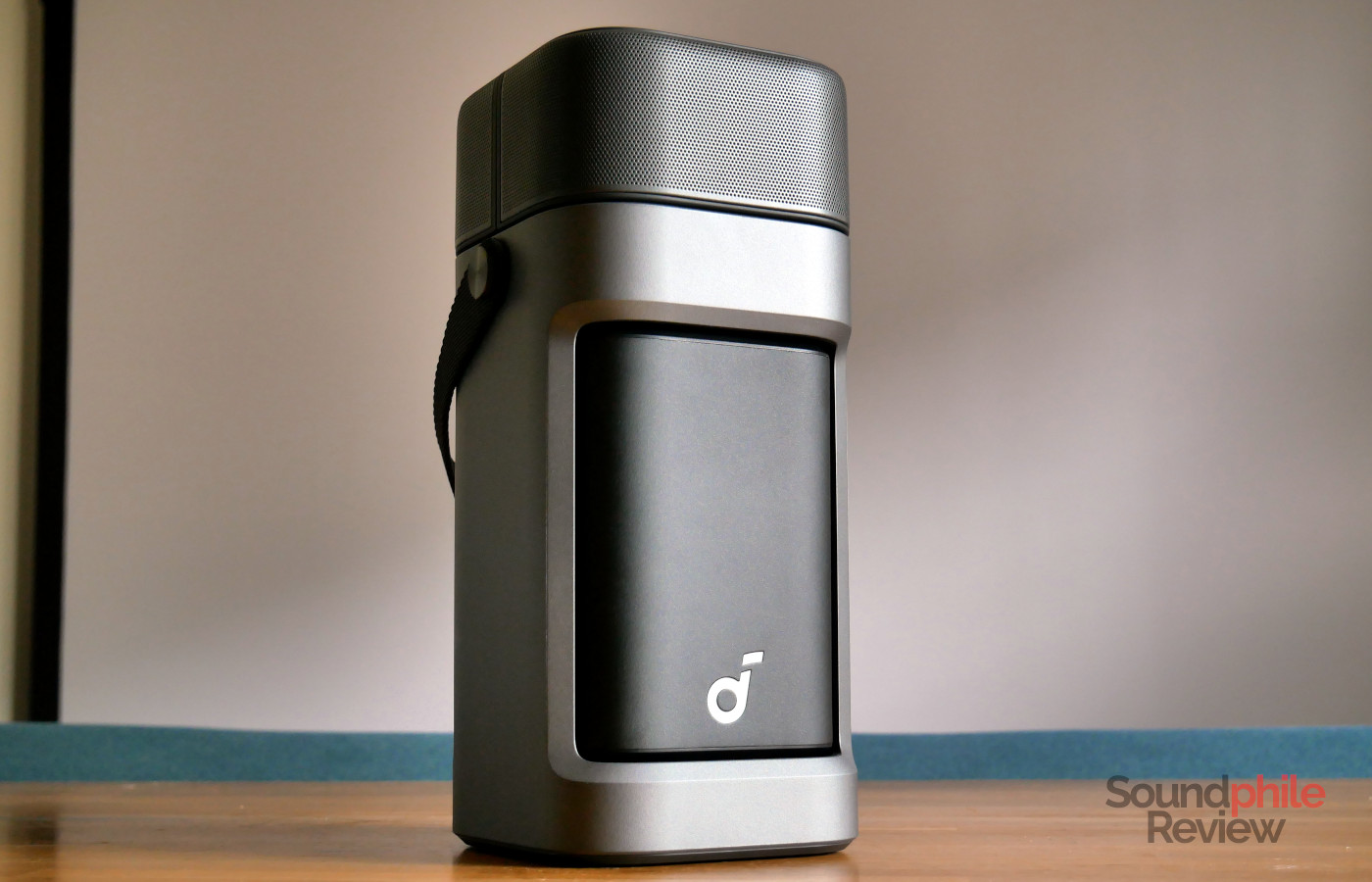
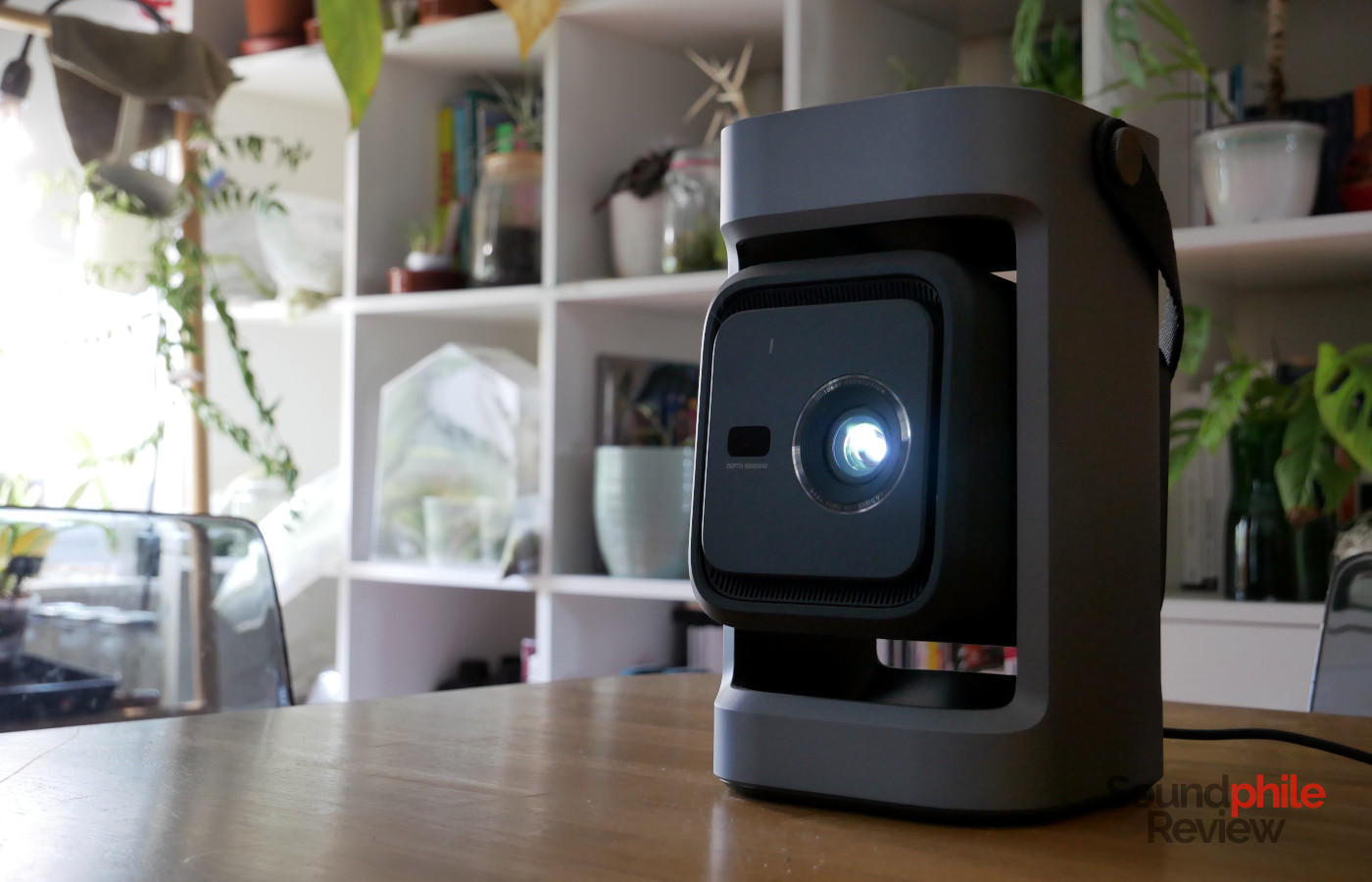
The Soundcore Nebula P1 has a very unusual design for a projector, as it appears as a column-like object with a fabric handle on top. The top section is made of two halves, which you can detach by pulling a switch on the back of the device: these are the two detachable wireless speakers that are the P1’s standout feature. Below them, encased in a dark grey chassis, is a black section that rotates and this is the actual projector: the unusual design is due to the device integrating a gimbal that allows you to adjust the height of the projection without using external means. This is a rather smart way of dealing with the issue of projection height, which is normally one of the main issues users need to deal with (the other being keystone correction, but we’ll get to that later).
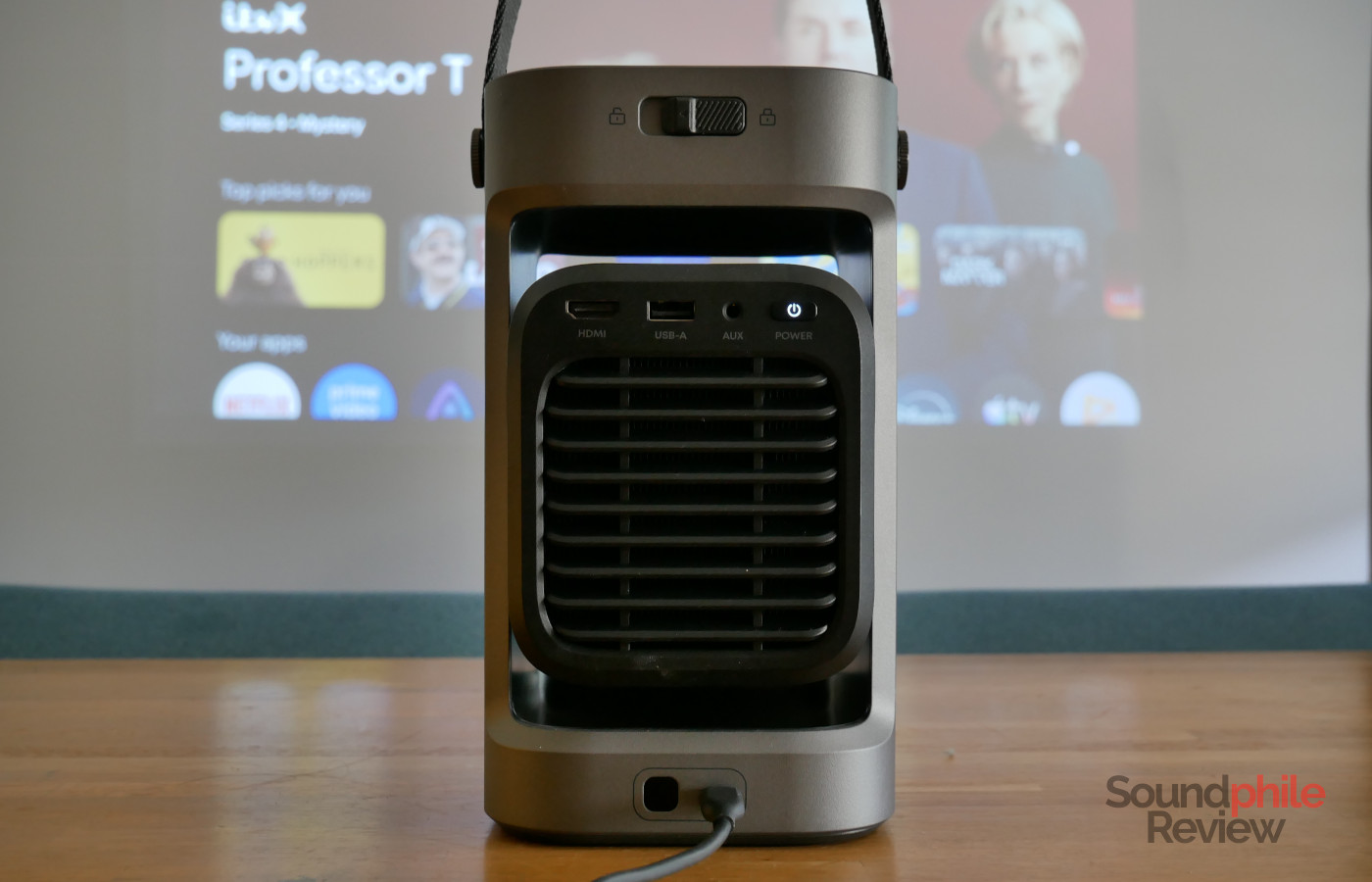
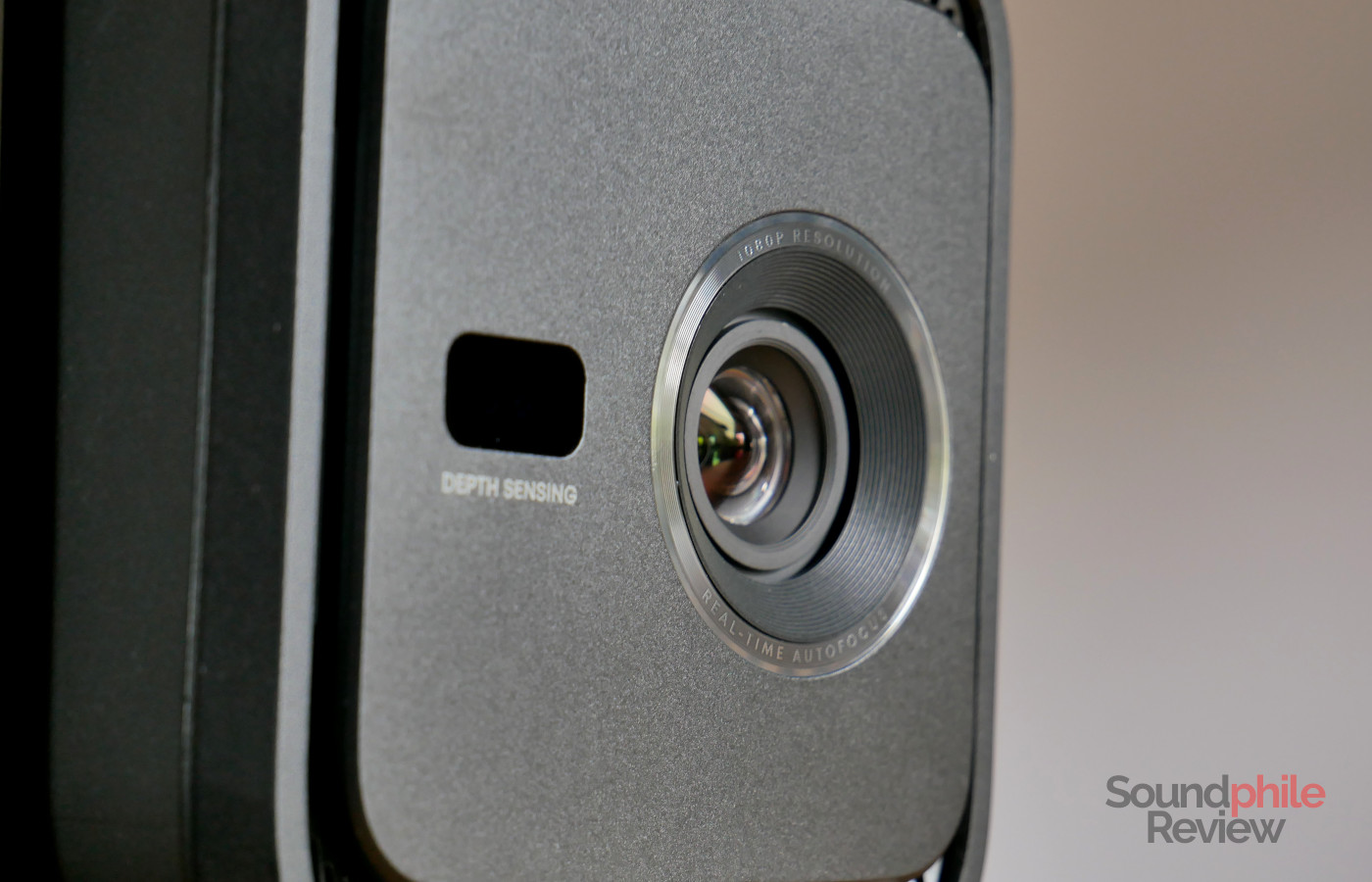
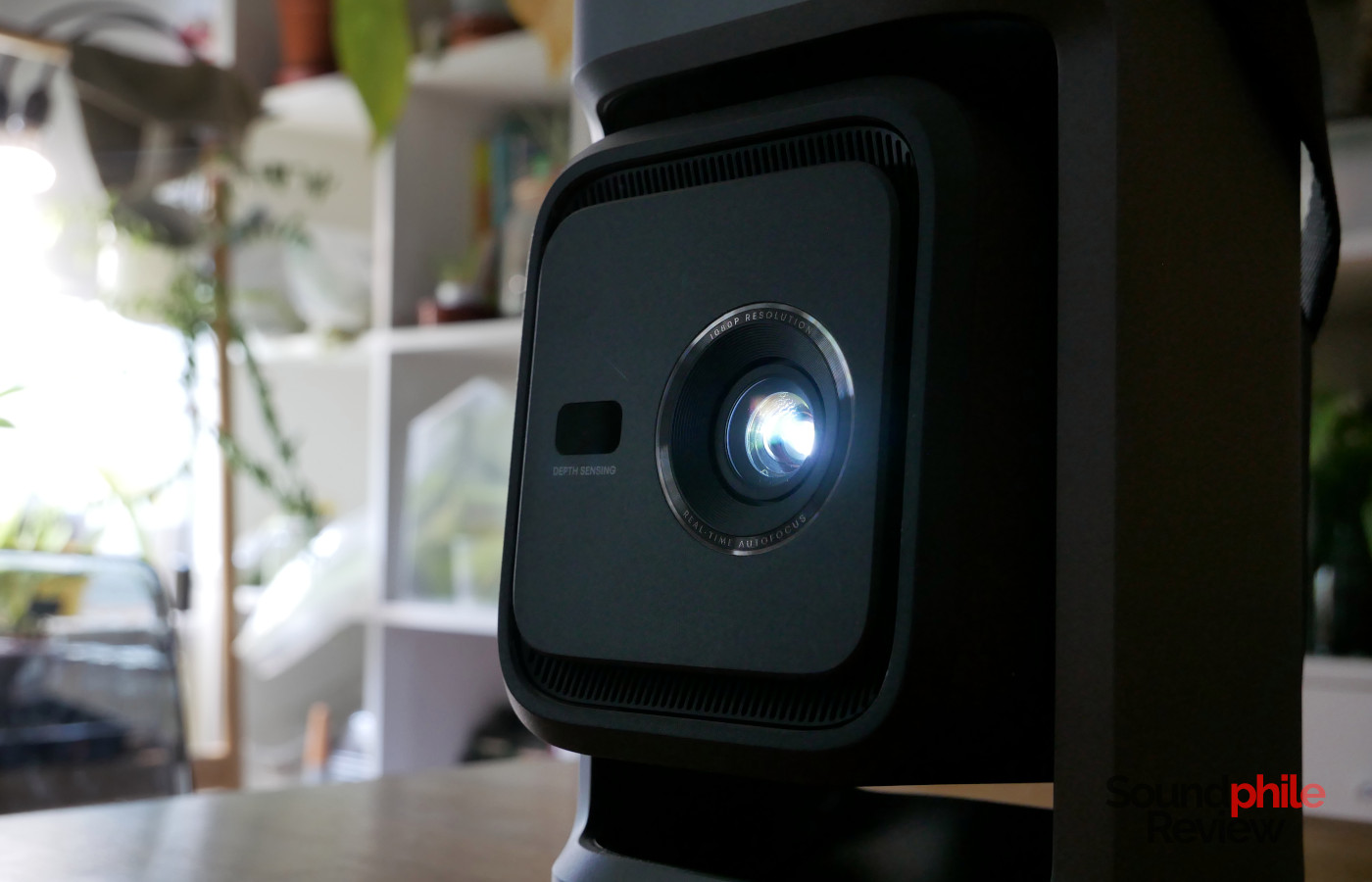
Once you open the projector by pushing the lower side forward, you can see that the front hosts the lens as well as a depth sensor, while the back hosts an HDMI port, a USB-A port, an aux jack output and the power button, together with the fan grille. Below it all, in the base, we find a USB-C port for power input. The underside of the base also hosts four rubber feet and a screw to mount the Nebula P1 to a tripod or other mount.
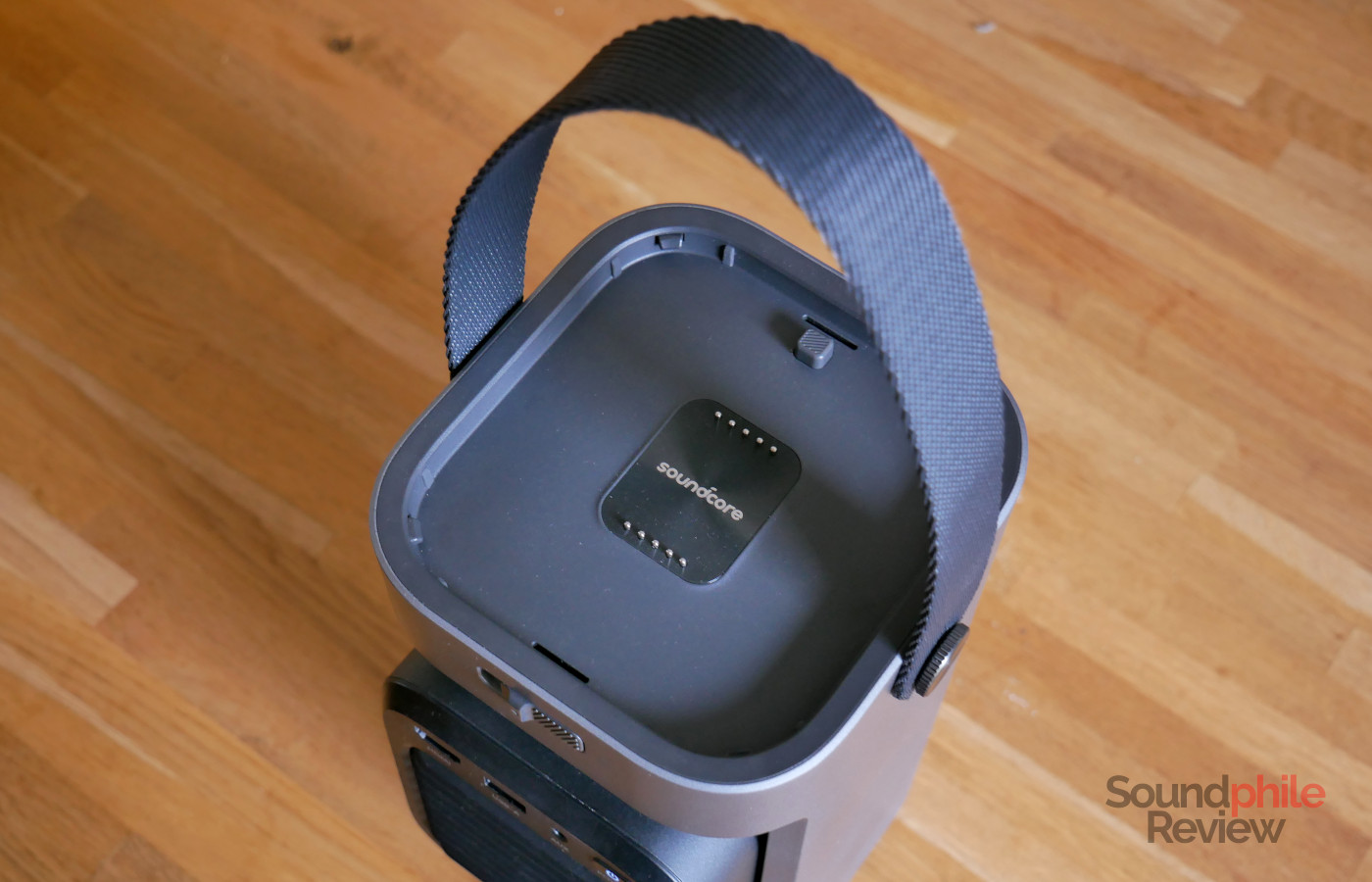
The projector is solidly built and appears very robust and assembled using quality materials; the plastic the chassis is made of feels quite durable and sturdy, as in Anker’s tradition. With a size of 28.4 x 12.2 x 12.8 cm and a weight of 2.4 kg, the Nebula P1 is easily transported and does not take much space when not in use.
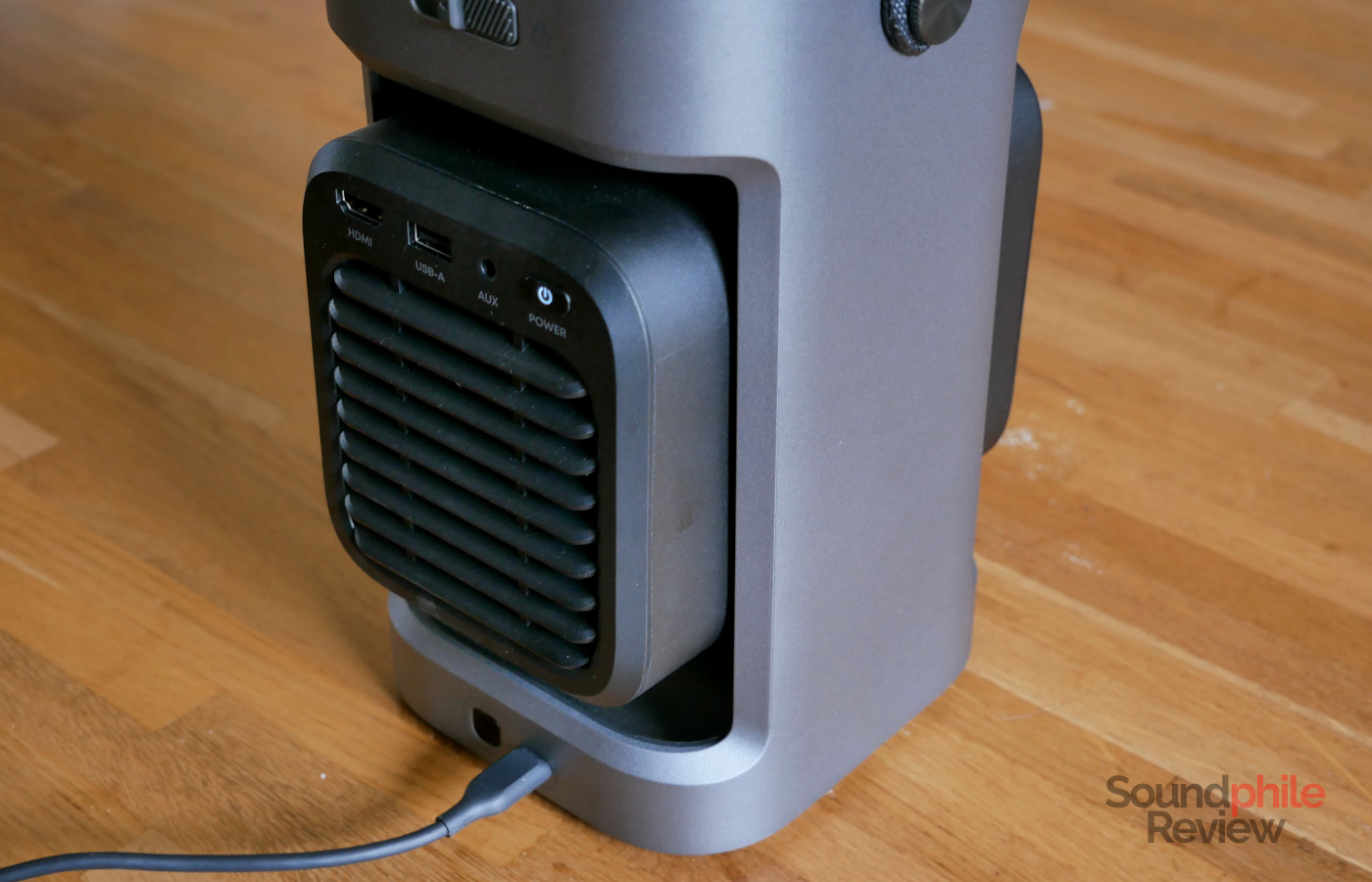
The fan is very quiet, to the point you can have the projector directly next to you without issues. The noise is barely noticeable and it is low enough in frequency that you tune it out very easily, and it is covered by any sound coming from the speakers. One thing to note, however, is that the projector itself appears to emit a high-pitched noise in high-brightness modes (Standard and Conference; more on this later), though this behaviour is not present at all in all other modes.
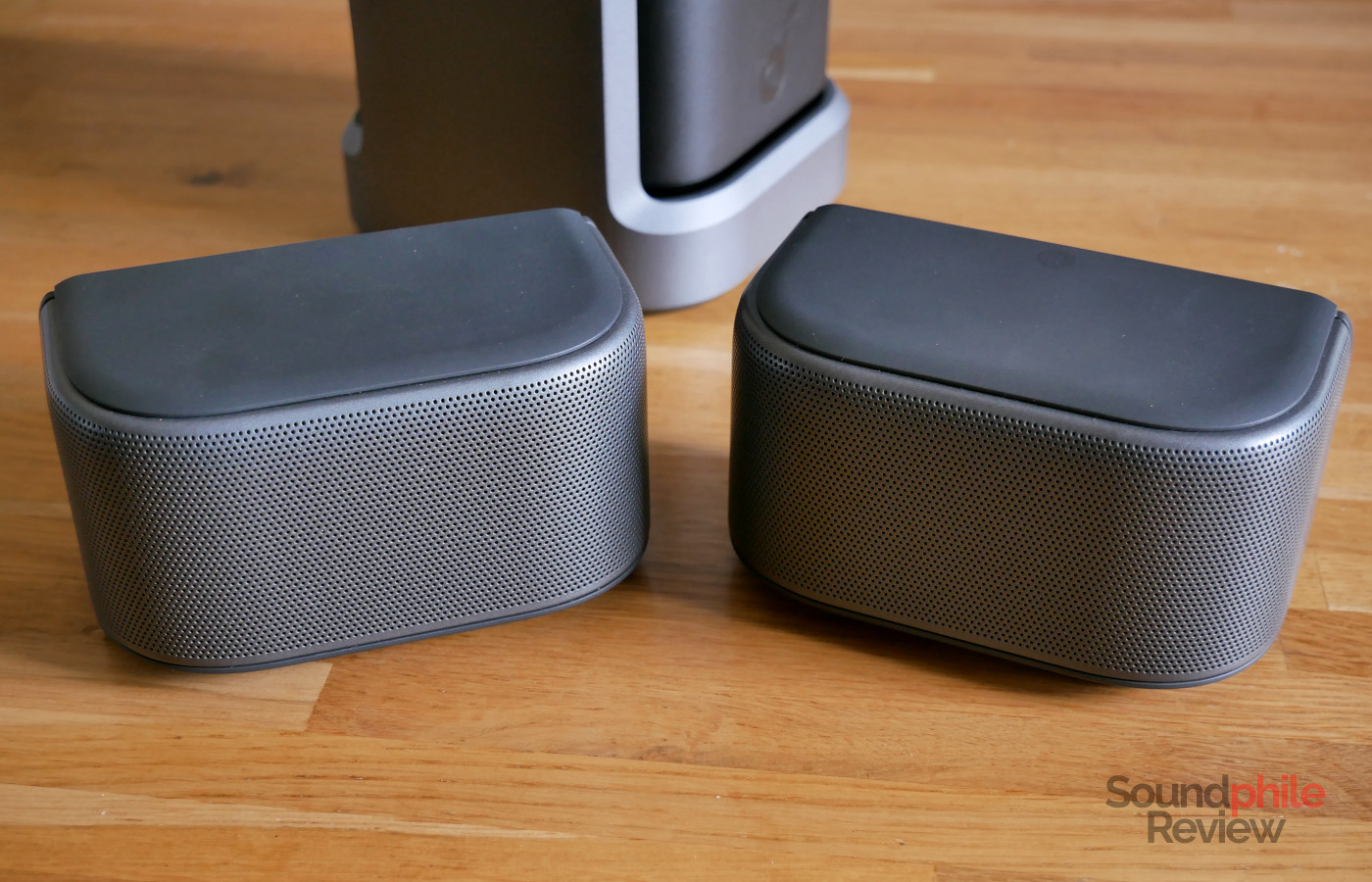
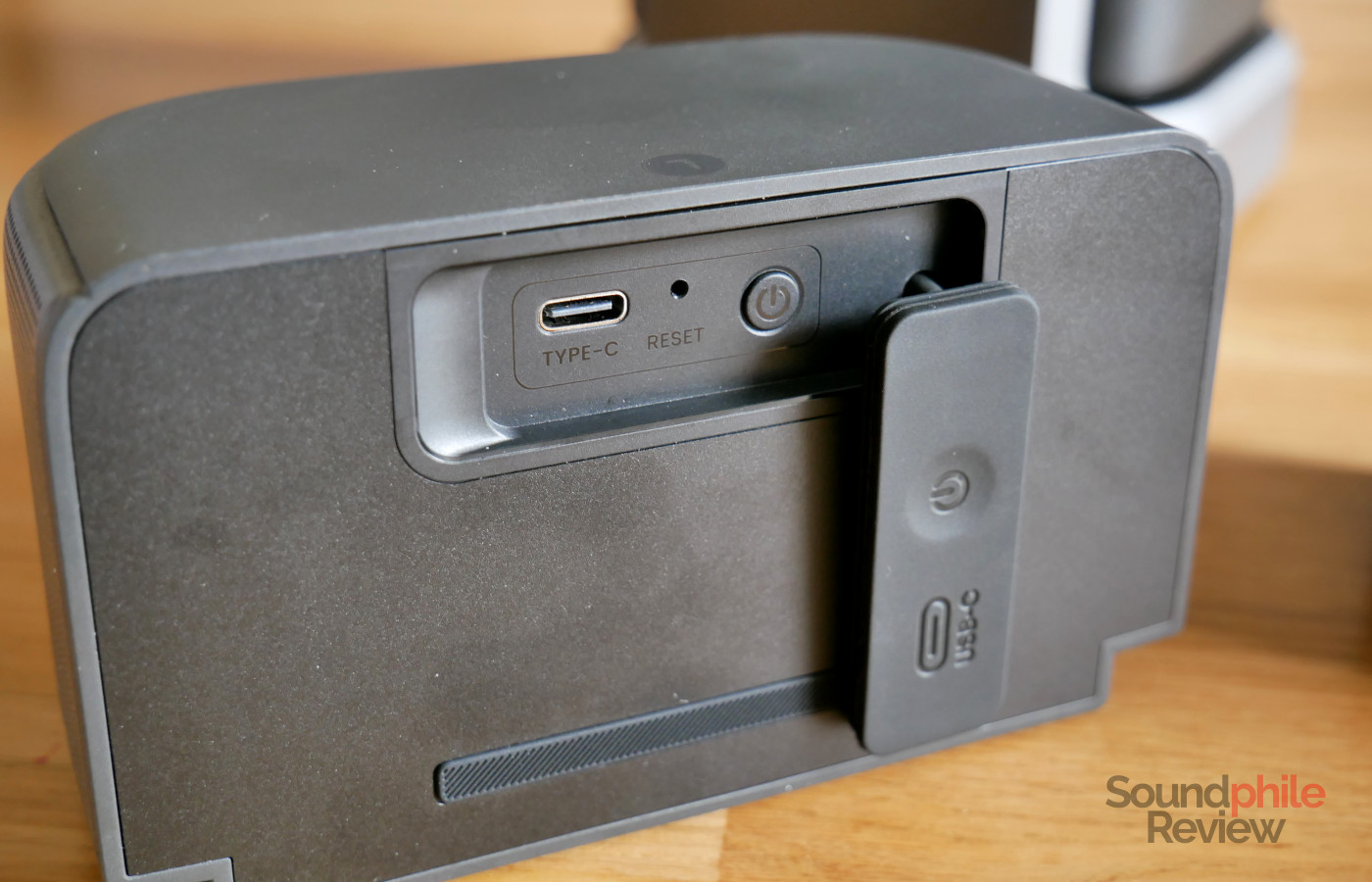
The speakers look like two boxes with two rounded corners, with the top and bottom covered in soft-touch plastic and the sides in a fine metal grille. The only side that’s not covered in metal features a rubber lid which hides the power button, a USB-C port and a reset button, as well as a hidden magnet to make the two speakers attach to each other.
The projector carries an IP33 certification, though that only applies to when the device is in its closed position; when it is open, it is not resistant to either water nor dust, also due to the presence of the exposed pins to recharge the speakers on the top of the device. The speakers, on the other hand, are IP54 certified and therefore can withstand splashes of water – no problem if they get rained on.
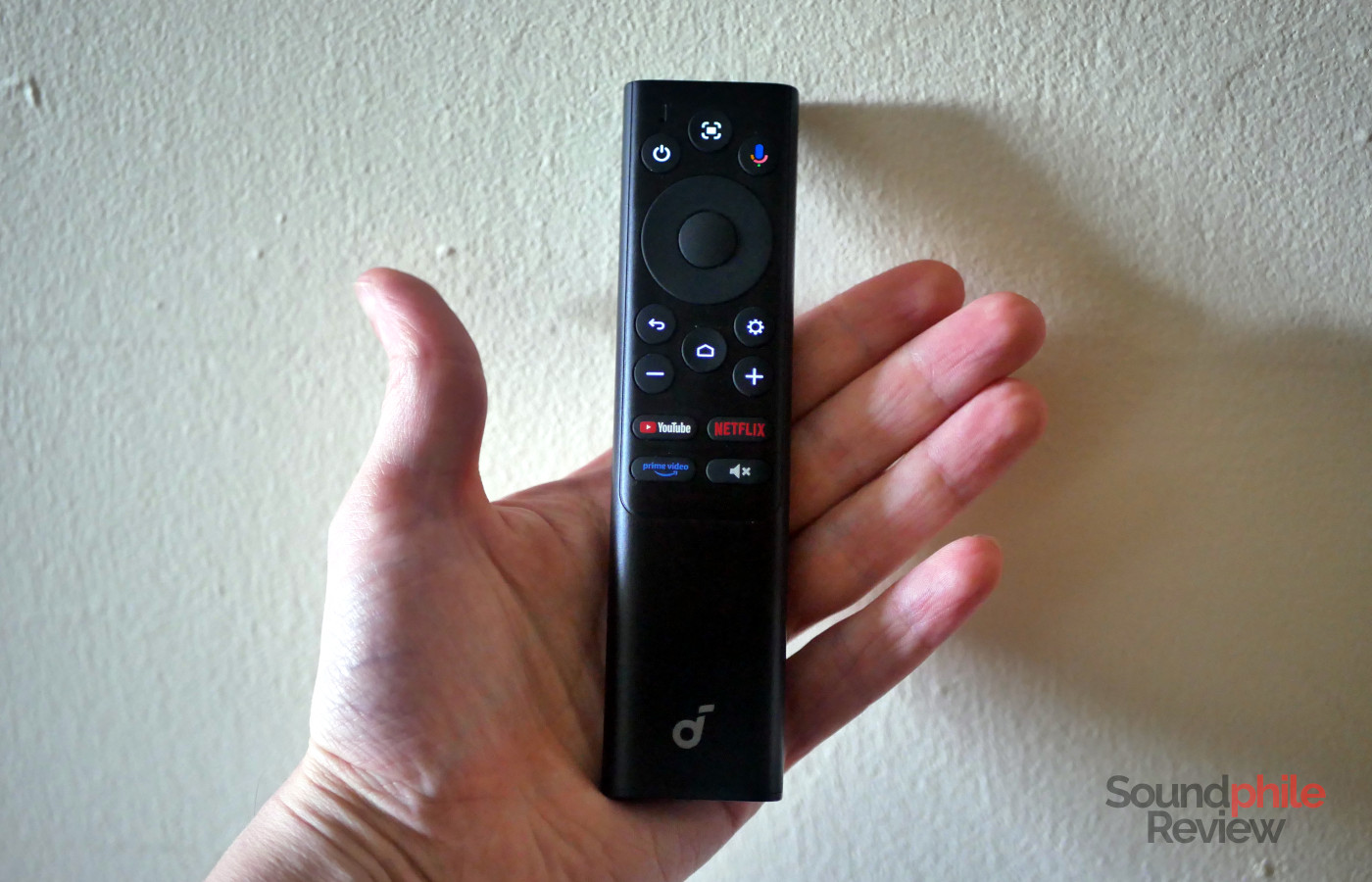
The remote is sleek and small, and it has all the buttons you need to easily operate the projector: we find power, automatic picture adjustment, Google voice input, a D-pad with a confirm button in the centre, back, home, settings, vol- and vol+, as well as YouTube, Netflix, Prime Video and mute. A great touch is the fact that the buttons automatically light up when you pick it up, which makes it easy to see which button(s) you should press in a dark environment.
Specs & Features
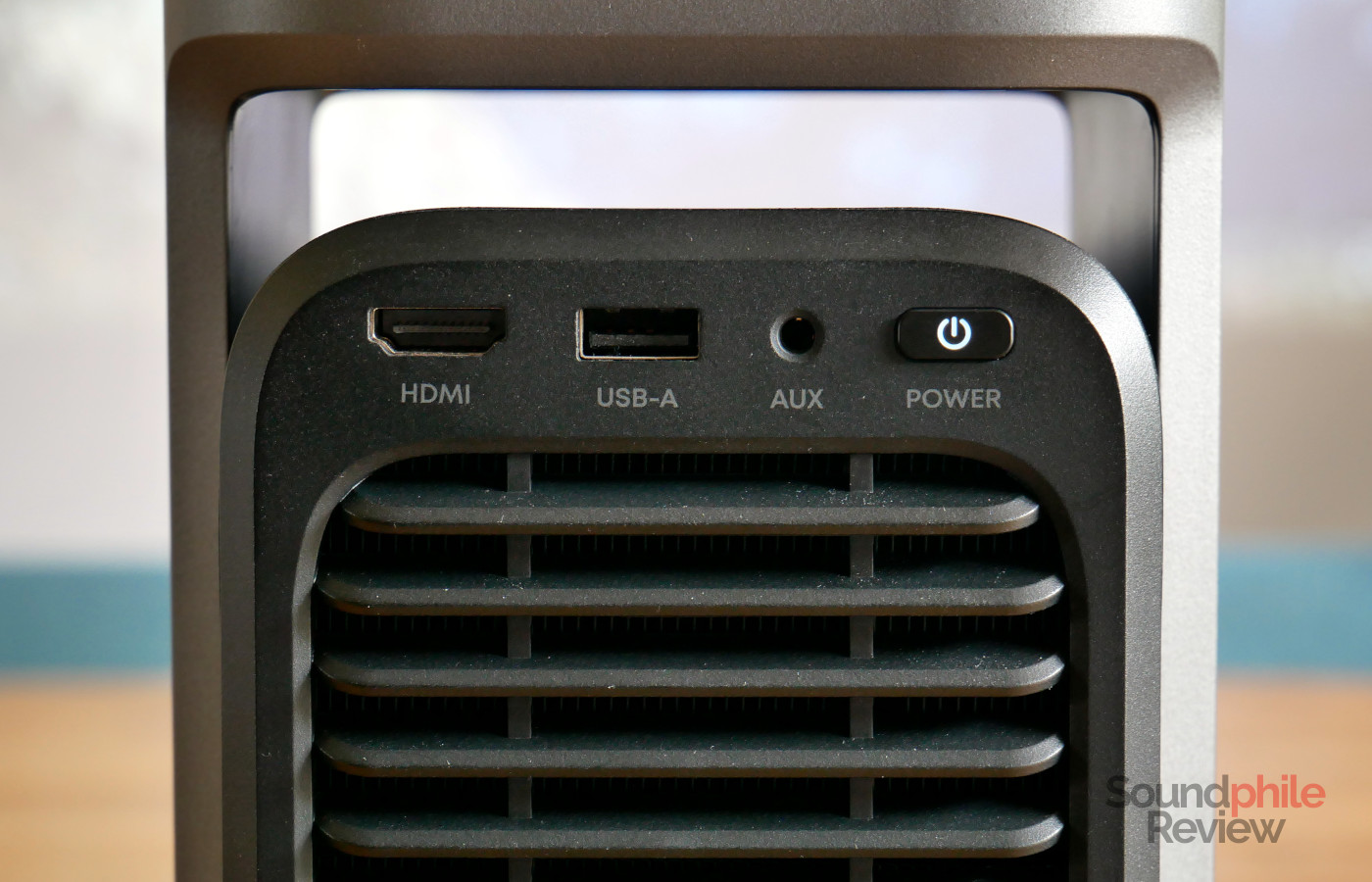
The Soundcore Nebula P1 boasts a maximum declared brightness of 650 ANSI lumens, with a maximum projection size of 180 inches and Full-HD resolution (1920 x 1080). Through its HDMI 2.1 port (with ARC support) the projector supports 4K input, which it then downscales to Full-HD. The actual maximum brightness is much lower than the declared value, as we’ll see in the Picture & Sound Quality section.
The light source uses LEDs, which make it more compact and cheaper to manufacture than laser sources. LED sources are ideal for smaller, quieter, portable projectors, which is the case here; the tradeoff is that they are less bright and less accurate in colour reproduction. The estimated lifespan is 25,000 hours, which is equivalent to roughly three years of non-stop projection.
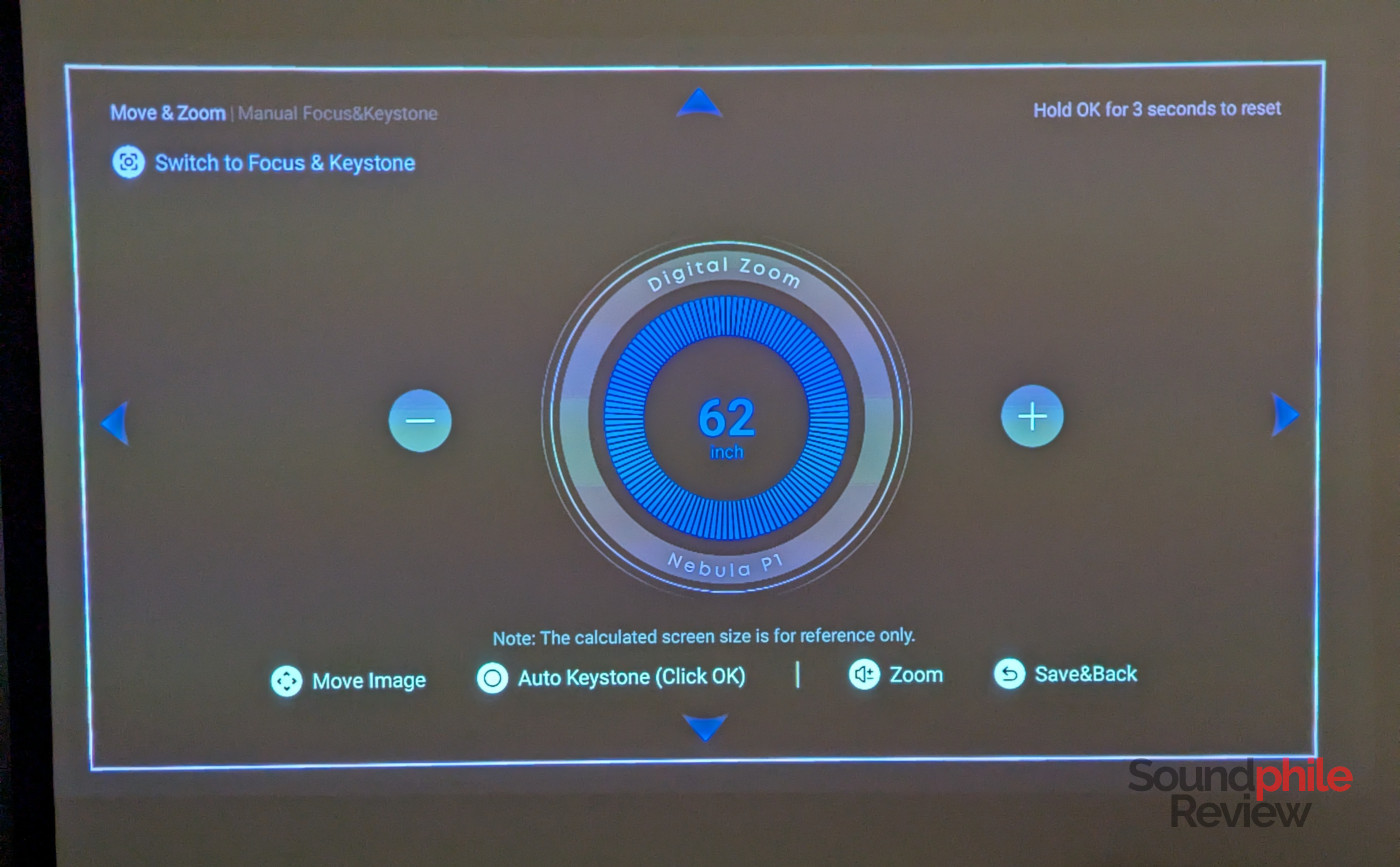
The projector’s throw ratio sees increases of 20″ every 50 cm of distance from the screen, and therefore 60″ from 1.59 m, 80″ from 2.13 m, 100″ from 2.66 m, 120″ from 3.19 m, 150″ from 4 m and 180″ from 4.8 m. There is a software zoom feature that allows you to reduce the size of the projected image.
As getting the projection angle right is generally difficult with a portable projector, the Nebula P1 features automatic keystone correction as well as autofocus. Both work almost instantly and require just a couple of seconds to adjust the image; not only that, but the projector will sense when it has been moved and it will adjust the image accordingly. The system is super-fast and smooth and allows you to get the best picture in all contexts.
In order to reduce stuttering and improve the perceived smoothness of the pictures being projected, the projector features the MEMC (Motion Estimation and Motion Compensation) technique, which creates additional frames and interposes them between real frames. This creates a higher framerate which our eyes and brains perceive as smoother and more natural, although it can also make the movements look exaggerated.
The Nebula P1 offers a ceiling projection mode, which becomes quite useful if you’d like to enjoy your movies while in bed, as an example. The tilting mechanism comes in quite handy for this, but if you tilt the projector over 45° from the floor plane it warns that the angle is excessive and that you should reduce it, which somewhat limits its usefulness in the ceiling projection scenario. I have also not found a way to turn the image upside down, so that you could have the projector at the feet of your bed and the image projected above your head.
The two speakers feature a power output of 10 W each and are connected to the projector through Bluetooth and feature sub-50 ms latency, which is low enough to be unnoticeable. They automatically pair to the device when you detach them from the base.
Battery Life
One thing to note is that, although SoundCore markets the projector as portable, it is so only in the sense that it is easy to carry. It does not contain a battery and therefore requires to be constantly plugged in either to its power supply or to a power bank powerful enough to support it (the Anker 737 is offered in bundle for an increased price).
The detachable speakers, on the other hand, are battery-powered so that you can position them wherever you want them. SoundCore says that they offer up to 20 hours of battery life, which seems to be accurate. I used them for four consecutive days for about two and a half hours a day without turning them off nor putting them back on the projector to charge them, for a total of about 10 hours of active use and ~80 hours of standby which appears consistent with the figures given by the company. It takes about three hours to charge them completely.
Charging can happen through either by placing them back on top of the projector, or by connecting a USB-C cable directly to each individual speaker.
Software
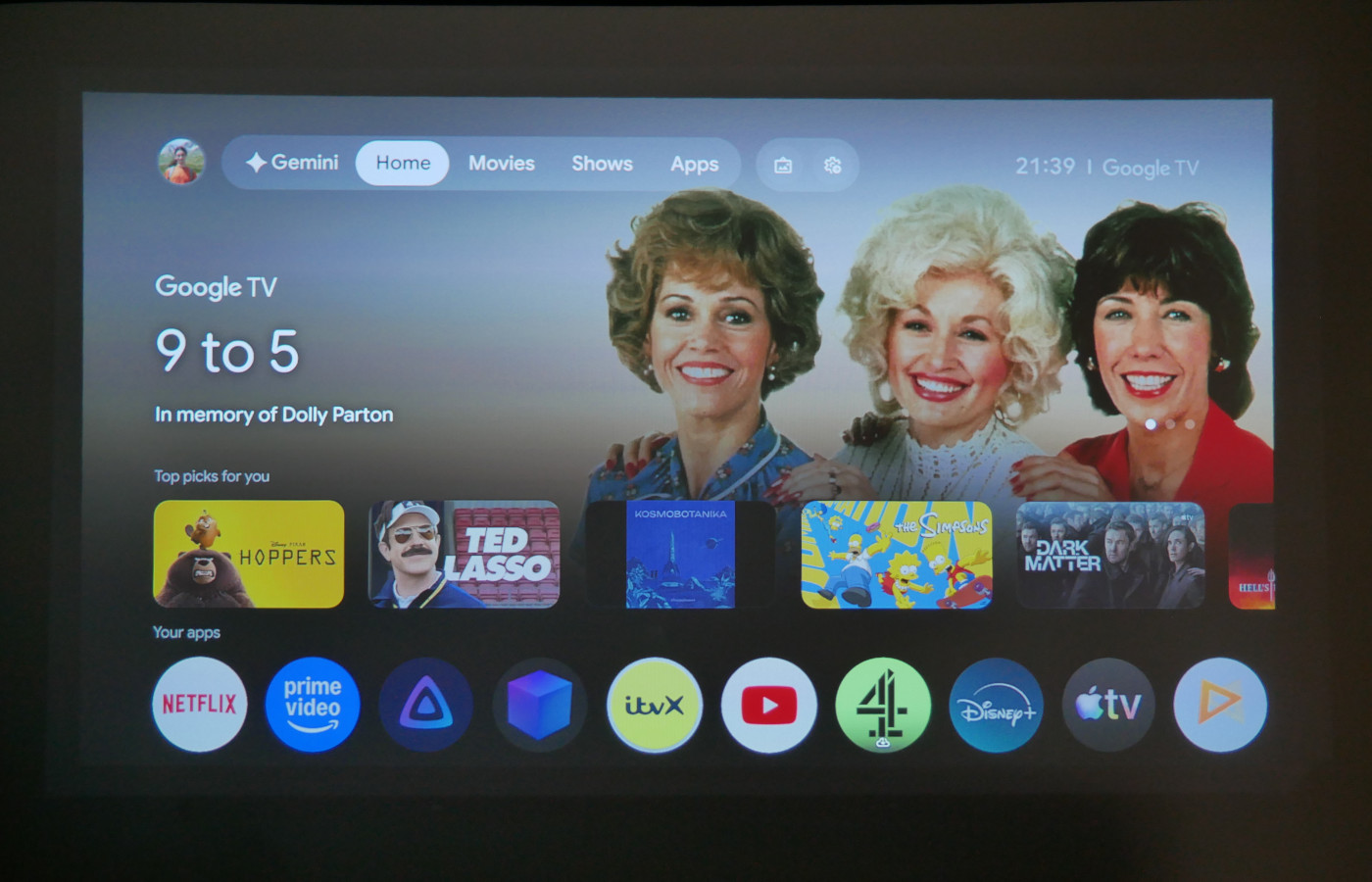
The Nebula P1 uses Android TV based on Android 14, which is the latest version available at the time of this review being published. The system uses the Google TV interface. This means that the interface and the apps are all natively compatible with (and designed for) usage through a remote; several apps come pre-installed and you can install new ones through the Google Play Store. Among them, Netflix, Prime Video and YouTube.
The system reacts in an overall swift and smooth fashion, although the home screen sometimes takes a bit to load and experiences momentary stutters. All apps I have tested, from Netflix and Prime Video to Jellyfin, work very well.
Soundcore has not introduced much in terms of UI customisation; in fact, the OS looks remarkably stock. What the company has done is to introduce a few applications to provide you with additional content: Nebula Life allows you to play images like landscapes and other scenes (like, for example, a “happy birthday” sign or fireworks), as well as a wall clock or backdrops for pictures; Nebula Play gives you tips and access to FAQs; Nebula Cast (which is not preinstalled and needs to be downloaded from the Play Store) makes it possible to project your screen from computers, tablets and smartphones. Nebula Cast works quite well in general, but it is limited in what it can cast. The Netflix application, as an example, does not allow casting and will display a black screen.
The Nebula Connect app, which is available for both Android and iOS and which will soon be renamed Anker Nebula, offers a simple interface to access a variety of settings on the projector as well as multiple features. On top of allowing you to access virtually all the projector-related settings, the app gives you access to a remote without needing the actual physical counterpart, and it actually offers a mouse mode that is not available with the remote. It also allows you to adjust audio and picture settings: the latter uses not only the settings that you find in the operating system, but also additional features like VisionFit, which displays a test image and asks you to take a picture of it using your phone; while this is meant to have a better effect than the on-board keystone adjustment, I have struggled to make it work properly and it has consistently delivered inferior results. The app also allows you to directly open applications installed on the projector.
Picture & Sound Quality
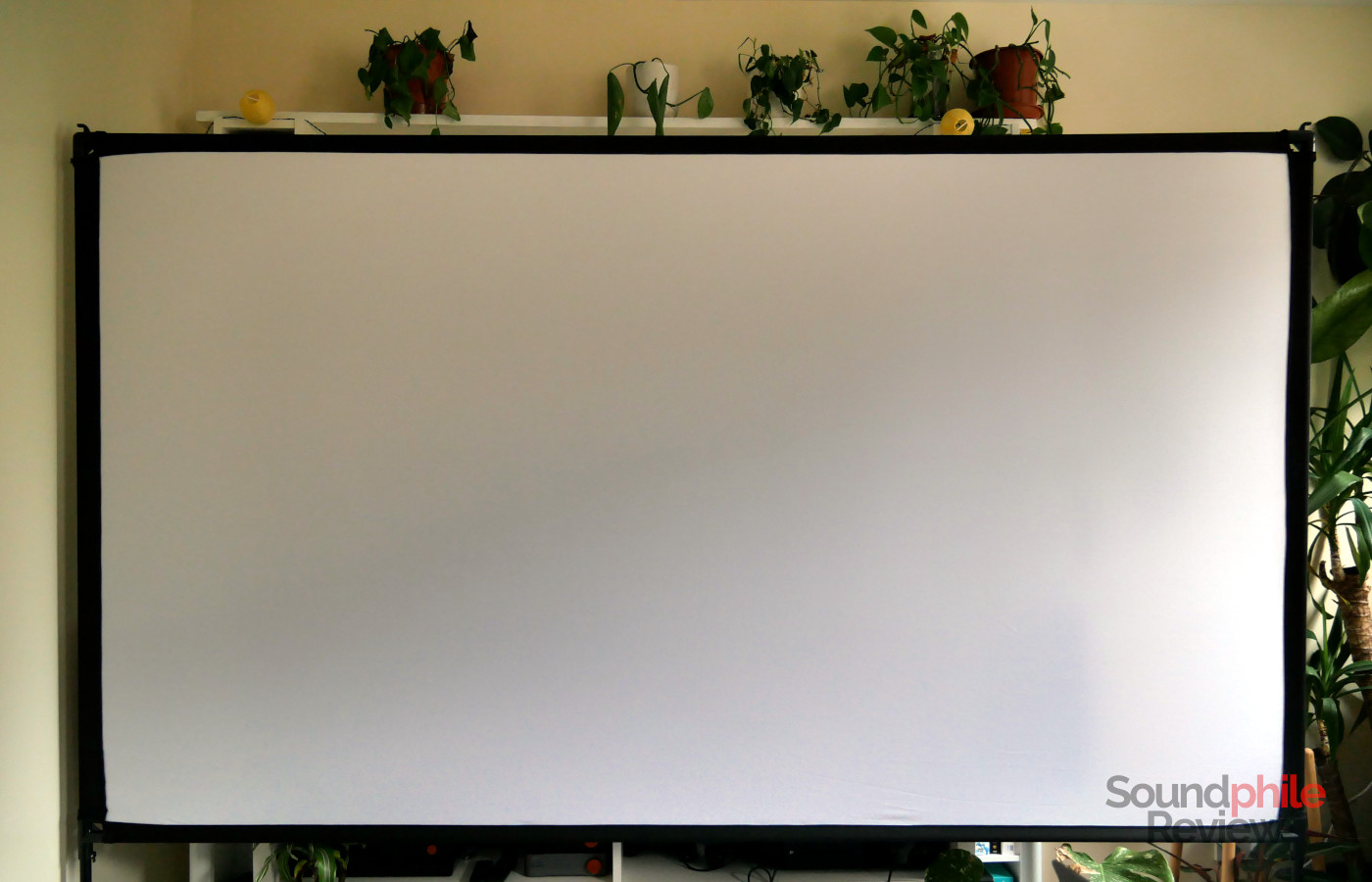
I tested the Soundcore Nebula P1 by projecting on a Nebula 100-inch Projector Screen.
Due to its limited brightness, using the Nebula P1 in a bright room yields a very washed-out picture which is going to be barely visible in case it has a strong component of dark colours. A dark room is a necessity, not an option, though a pitch-dark one yields the best results.
The Nebula P1 offers seven picture modes: NebulaMaster, Standard, Vidid, Sport, Movie, Game (further branching into Standard and Extreme), and Conference. Generally speaking, all modes except for Conference show a good level of colour accuracy as well as reasonably low levels of dithering. Let’s analyse each mode:
- NebulaMaster has the highest saturation and therefore offers the most eye-catching colours; everything looks a little bit too vivid, though the emphasis is on “a little bit” as it is overall quite faithful to the original. The only thing to note is that it tends to over-represent blue tones, thus making the picture look relatively cold. This mode offers good brightness.
- Standard trades some colour accuracy for a higher level of brightness: contrary to NebulaMaster, here blue is quite accurate while red, pink, and orange appear more vibrant than they should, and green is undersaturated. Brightness, on the other hand, is the highest outside of Conference mode.
- Vivid is very close to NebulaMaster but, surprisingly given the name, is actually more faithful. The difference is small, but Vivid offers better blue representation while also featuring a slight red/magenta bias (as a result of which skin appears slightly too red, as an example). Brightness levels are slightly lower than NebulaMaster.
- Sport mode automatically enables MEMC to reduce motion blur and deliver a smoother image, which is especially important when watching sports content. In terms of both colour accuracy and brightness it is very similar to NebulaMaster; the only difference seems to be the default enablement of MEMC, which can be enabled in every mode.
- Movie mode trades brightness for higher colour fidelity, as this is the mode with the lowest brightness among the settings. Overall this is the mode that cinephiles will want to use to get the most accurate colour reproduction; despite this, there is a slight deviation from a neutral colour reproduction, with red and especially blue being somewhat over-represented (giving a slightly pink/magenta tone to the picture). A dark room is a necessity with this mode, as even a little ambient light will make the picture look washed out.
- Game offers to sub-settings: Standard and Extreme. Both feature colour and brightness levels similar to NebulaMaster, but the difference lies in latency and functionality: while both offer better responsiveness than the other modes, Extreme disables keystone correction entirely to provide the best latency levels.
- Conference offers the highest brightness level at the cost of colour accuracy and dithering being very visible. This mode has a very noticeable green-yellow tinge and it has very visible dithering that looks like a less dramatic version of the static effect from old TV sets. This mode can only really be used for presentations or video calls as it simply does not work for video content.
Colour in all modes can be adjusted manually with settings related to brightness, contrast, saturation, hue, gamma (dark, normal, bright), colour (with a temperature setting as well as individual RGB levels) and colour space (which you can select between auto, off, on, sRGB/BT.709, Adobe RGB, BT.2020, and DCI). Minor adjustments in the RGB levels are all that’s needed, as colour accuracy is generally already good and even small changes deliver noticeable effects. You can also use a “Color Tuner” feature which gives you access to colour adjustments (hue, saturation, and colour brightness) for red, green, blue, cyan, magenta, yellow and flesh tone, as well as offset and gain for RGB. There’s a lot of leeway to play with adjustments here if you are so inclined!
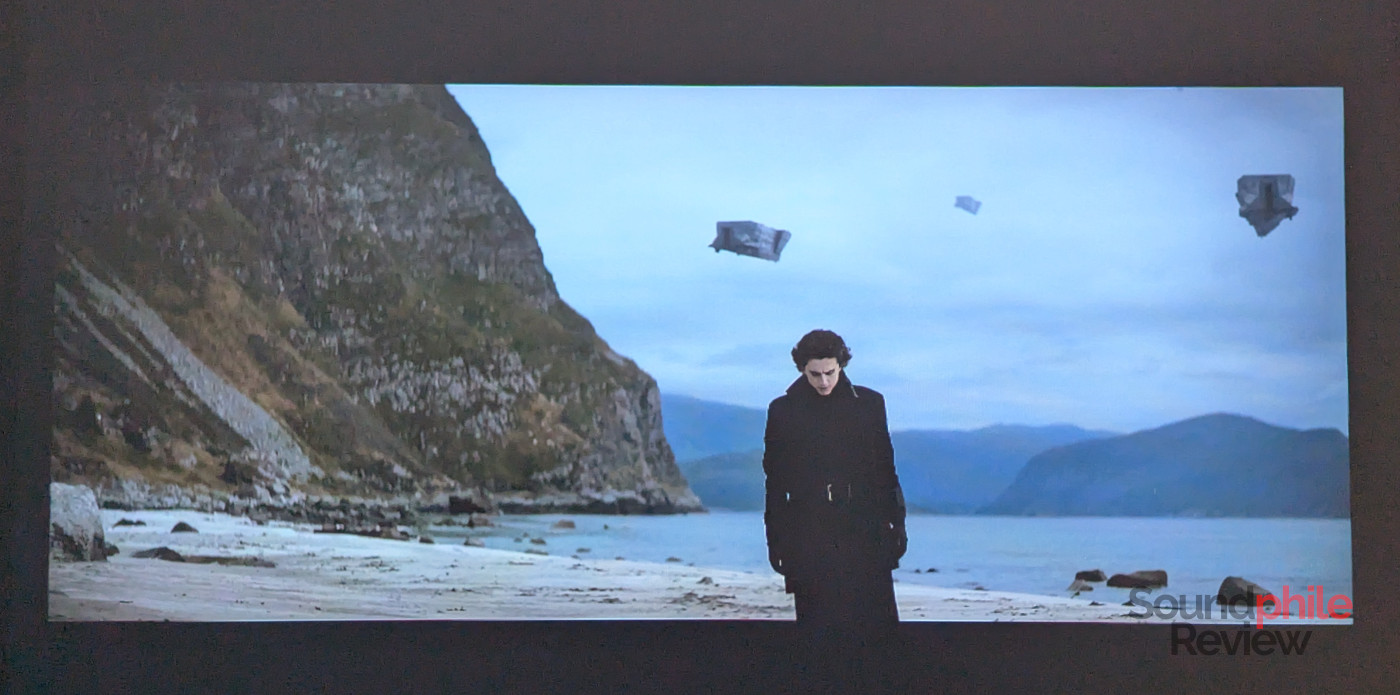
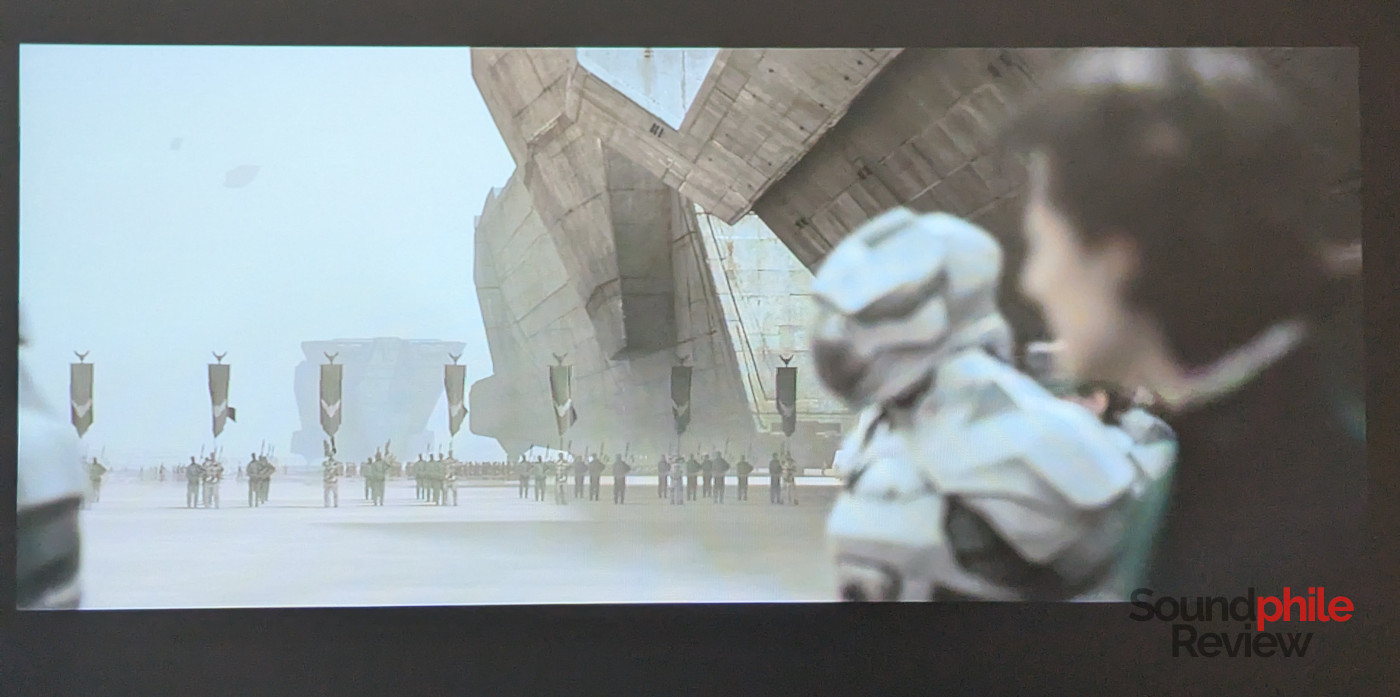
Overall, the default values work well and present an image that has very good contrast, good dynamic range and credible dark tones as well as highlights, with very little clipping.

Dithering is visible in all modes if you pay enough attention, but it mostly look like analogue film and is therefore largely something that not only you can ignore, but which gives the picture what I can only describe as an almost analogue look, which some may appreciate. The picture stays overall sharp and clean but, due to that film grain effect caused by dithering, images look somewhat softer and less defined than on a display, as you can see in the above picture from Dune (2021).
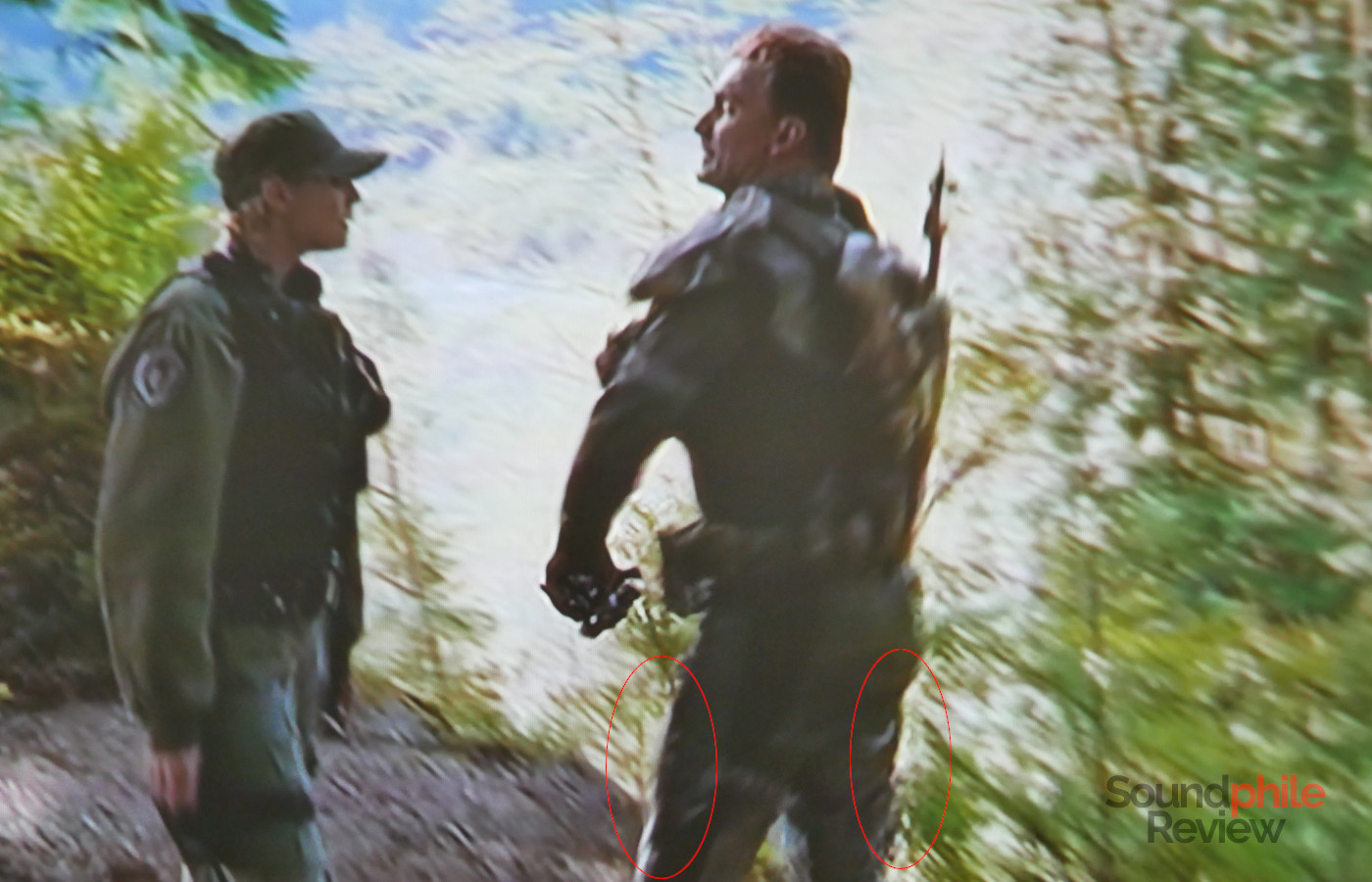
This is especially true if you are not watching HD content. I have been going through Stargate: SG-1 on Netflix and I watched a couple of episodes as an example of low-resolution content (SG-1 never received a high-definition remaster, unfortunately, so the best quality you can get for it is DVD). On top of the image often looking a bit fuzzy due to the low resolution, what I noticed is that it felt choppy unless I enabled MEMC on “low”, and that there were often artifacts in high-contrast scenes. As an example, in the episode Deadman’s Switch, you can see that the characters have a rather visible halo around them when they are moving (in the picture above; unfortunately the quality of the picture itself is terrible, but taking pictures of a moving image being projected on a screen is a real challenge!). This seems to indicate that either the algorithm to upscale images is flawed, or that the projector itself struggles dealing with such situations, as that halo was not present when looking at the image on a TV screen.
I have also tested the Game mode by connecting my gaming PC to it and playing Riftbreaker, a game which has lots of detail, highly-saturated and eye-popping colours, and very fast action. I could not really feel a difference compared to when I am playing on my TV, as the projector was highly responsive and offered low enough latency that it was not perceptible. People who engage in high-end competitive gaming might disagree on that point, but unfortunately I do not engage in competitive gaming and therefore I do not feel qualified to pass judgement on that front.
Broadly speaking, I found that setting MEMC on “low” delivered the best results; while there is somewhat large variability between titles, overall I found that the sense of smoothness delivered by MEMC improved the enjoyability of the picture significantly.
The last point I am going to touch on is audio quality. The Soundcore Nebula P1’s distinctive feature is the ability to detach the speakers and place them wherever you would like, which is a significant improvement over the built-in speakers that you usually find on portable projectors. The difference is, in fact, massive as you can easily position the speakers so that they offer a true stereo setup, something that is fundamental to really enjoy any movie or series. The speakers are relatively small, but they are able to produce sound with remarkable volume and bass depth. While they are no substitute for true speakers in a home theatre setup, like the Edifier R2750DB MKII, they offer a good enough reproduction for basic watching. Bass is surprisingly deep and powerful for their size, but it is still lacking overall and it sits behind the midrange, which is especially strong in the upper area.
In general, audio reproduced through the Nebula P1’s speakers is decent, but it is bright and it has a tendency to over-represent upper frequencies. It works well for voices and simpler audio effects, but complex soundtracks and action scenes will leave you wanting for more. There are four different modes you can choose from: Movie, which emphasises midrange to better represent voices; Music, which gives a balanced presentation; Outdoors, which boosts higher frequencies; and finally Custom, which gives you the ability to adjust bass and treble with sliders going from 0 to 100 as well as channel balance.
Final Thoughts
The Soundcore Nebula P1 is a solid portable projector that offers a good balance of audio and video. It prioritises convenience over sheer picture quality, as it offers relatively low brightness and an out-of-the-box colour reproduction that requires some adjustment. Its standout feature is, without doubt, the detachable wireless speakers, which deliver a significantly better experience than what you normally get from the integrated speakers on similar projectors.
The Nebula P1 works well for all sorts of content, from movies to gaming, provided that you use it in a dark room; even mild ambient light makes the picture look washed out and lacking depth. The Movie preset is the best among the default ones and it delivers overall good performance.
At $799/£699, the Soundcore Nebula P1 sits squarely in the midrange and in the upper range of portable projectors. While there are alternatives that offer better picture quality at a similar price point, none offer same balance of picture quality, sound quality, flexibility and ease of use. Whether for a movie night, for a gaming session or to watch your favourite series, the Nebula P1 is an overall good option when used in a dark environment, and I feel confident recommending it.