A NAS opens up a whole world of possibilities: you can share files on your local network (and beyond), and also store your media collection and run applications. It allows you to easily stream your media over the network, so that you can enjoy your music and video content on any device you like, from your phone to a specialised network streamer. The UGREEN NASync DXP4800 Pro is a fantastic option if you are considering a NAS, as it offers very solid hardware and easy-to-use software.
Disclaimer: I received a free unit from UGREEN for the purpose of writing this review. The NASync DXP4800 Pro retails for $639.99. Additional information is available on UGREEN’s website.
UGREEN NASync DXP4800 Pro At A Glance
| Pros |
Cons |
| + Elegant design and robust build
+ High performance + Easy-to-use operating system + HDMI output + 10 Gbps connectivity |
– Uses DDR5 memory which is very expensive
– Few apps in the App Center |
Rating: 9/10
Packaging & Accessories
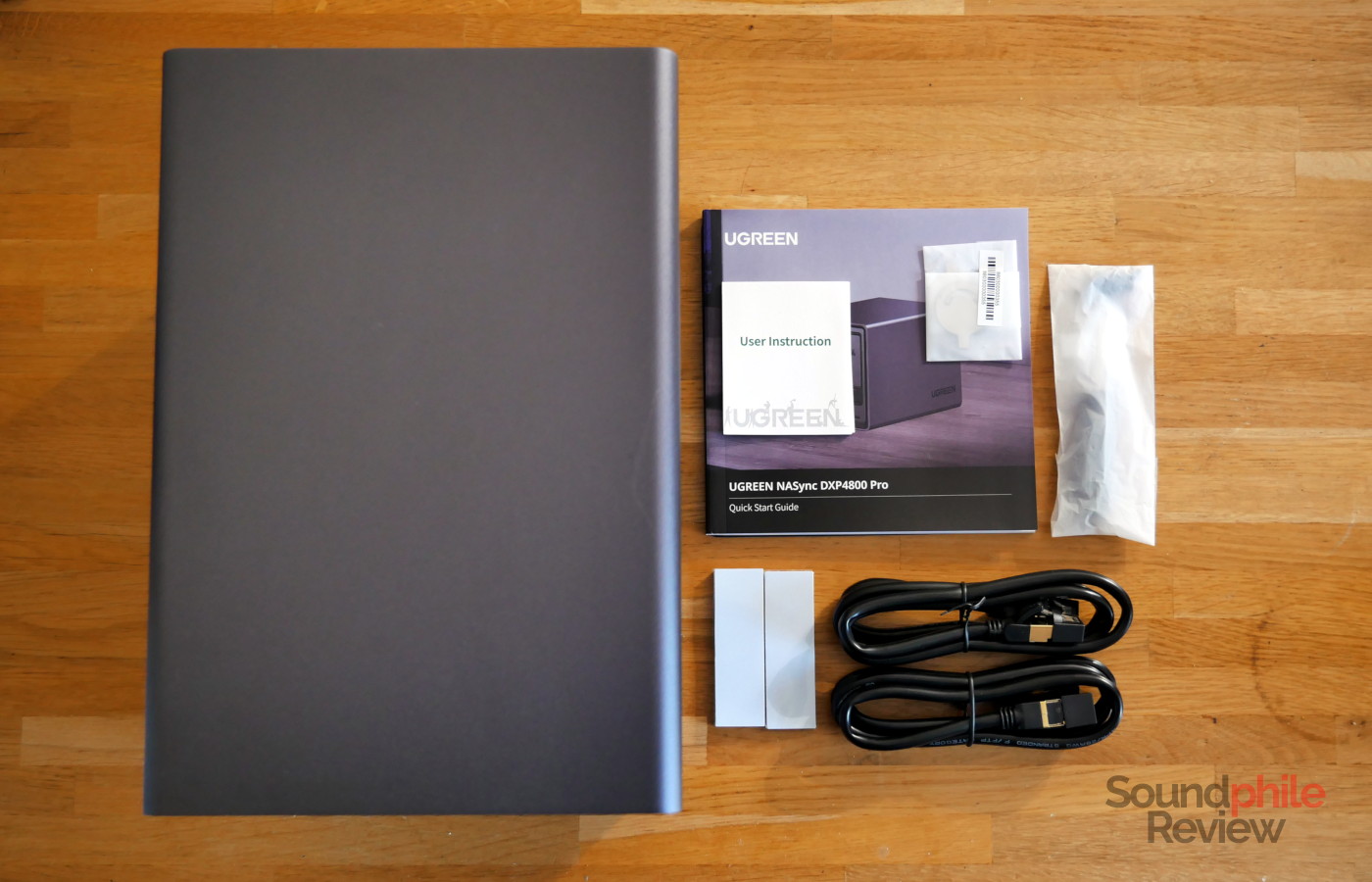
The NAS comes with a full set of accessories which includes the external 120 W power supply unit, a Cat 7 Ethernet cable, an HDMI 2.1 cable, a screwdriver and a set of screws to secure 2.5″ drives to the trays, an SSD thermal pad, two metal keys to lock the trays, a manual and a warranty card.
UGREEN NASync DXP4800 Pro Hardware
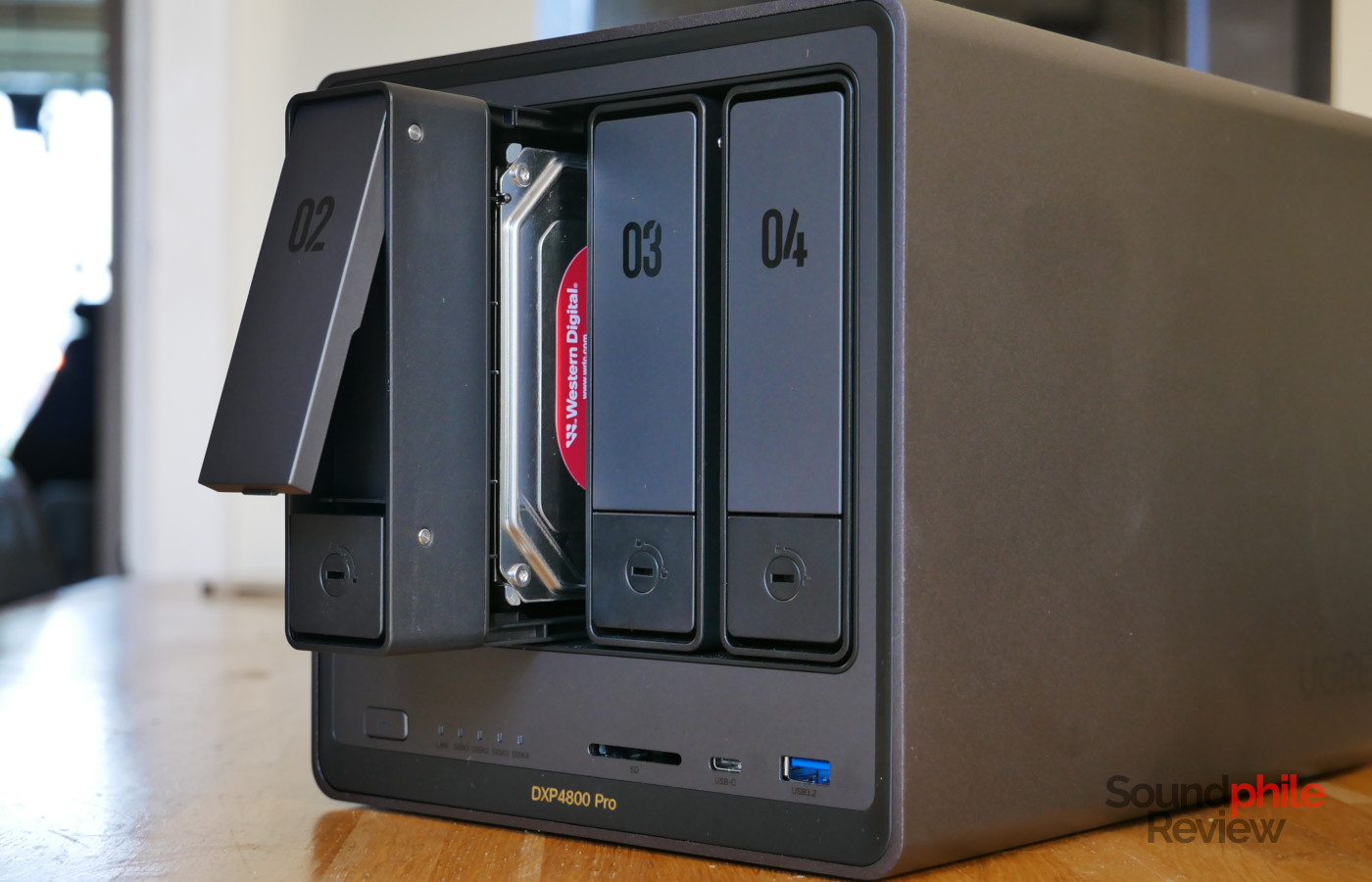
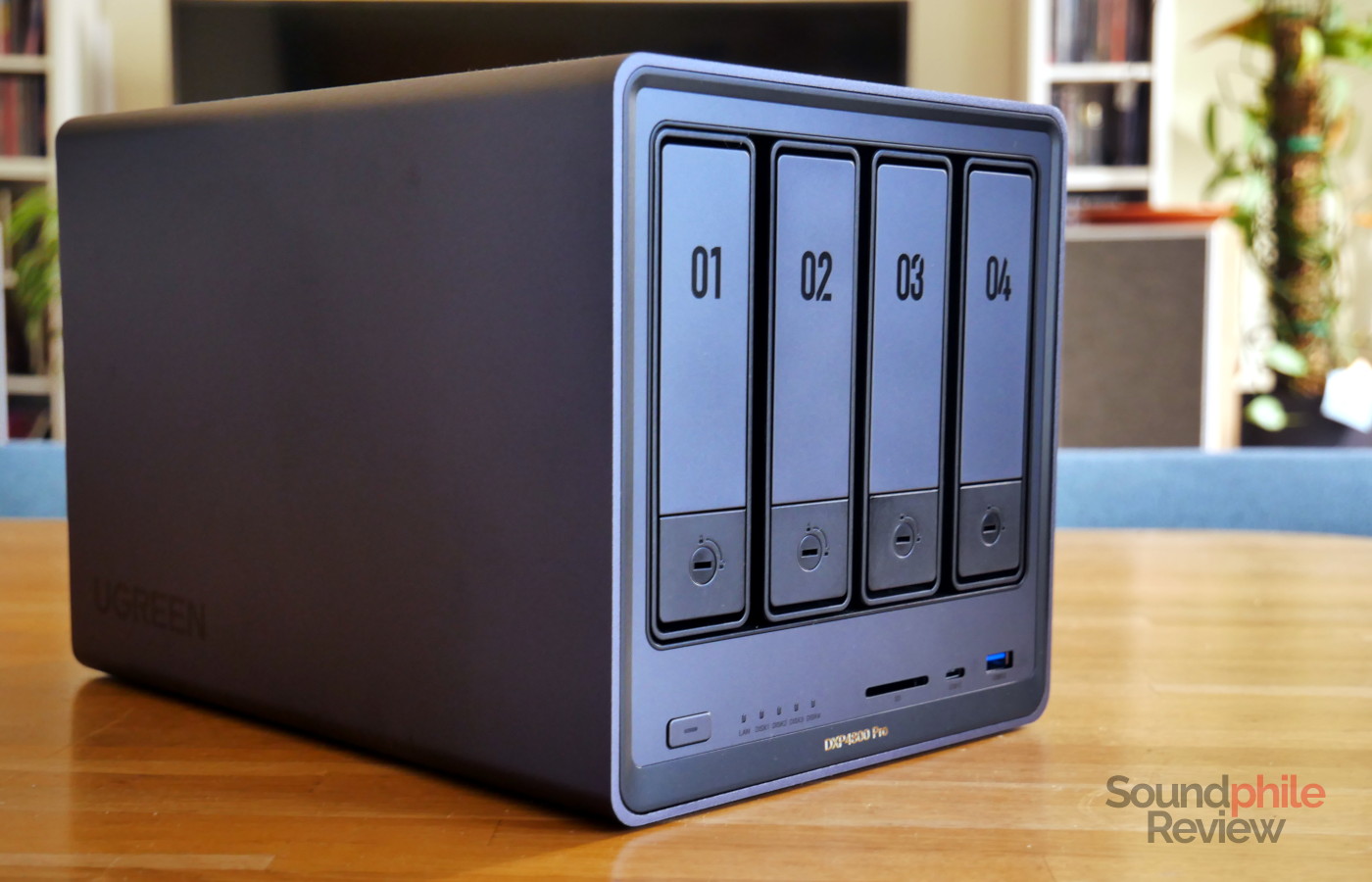
From the perspective of design and materials, the UGREEN NASync DXP4800 Pro is like all the other NAS by UGREEN – it uses an all-metal chassis that is made of a single piece of milled aluminium. Looking at UGREEN’s website I thought it would be coloured a light grey, but when looking at it in person I can see that the device is actually a very dark grey (much darker in person than in the pictures!). There is a slight tone difference due to the fact that some parts are made of plastic: as an example, the buttons you need to click to extract the trays, or the frame around the front. The overall appearance of the NASync DXP4800 Pro is streamlined and very elegant.
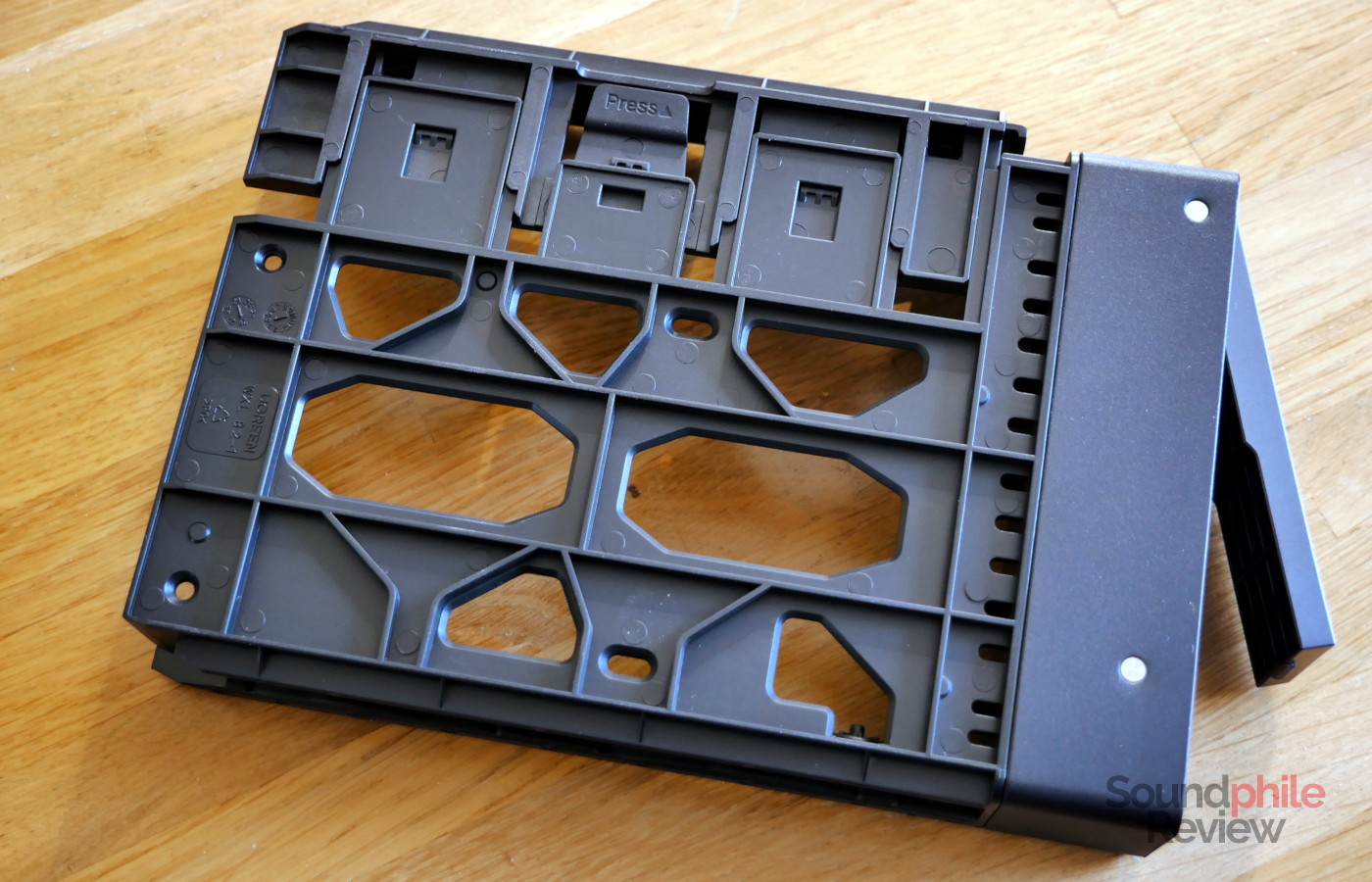
As the name suggests, the NASync DXP4800 Pro features four 3.5″ drive bays, which are entirely tool-less – you simply press a button on the underside and slide the side away so that you can fit the drive in. It’s the simplest approach I’ve seen to building drive trays across all manufacturers. The trays slide in and out very smoothly.
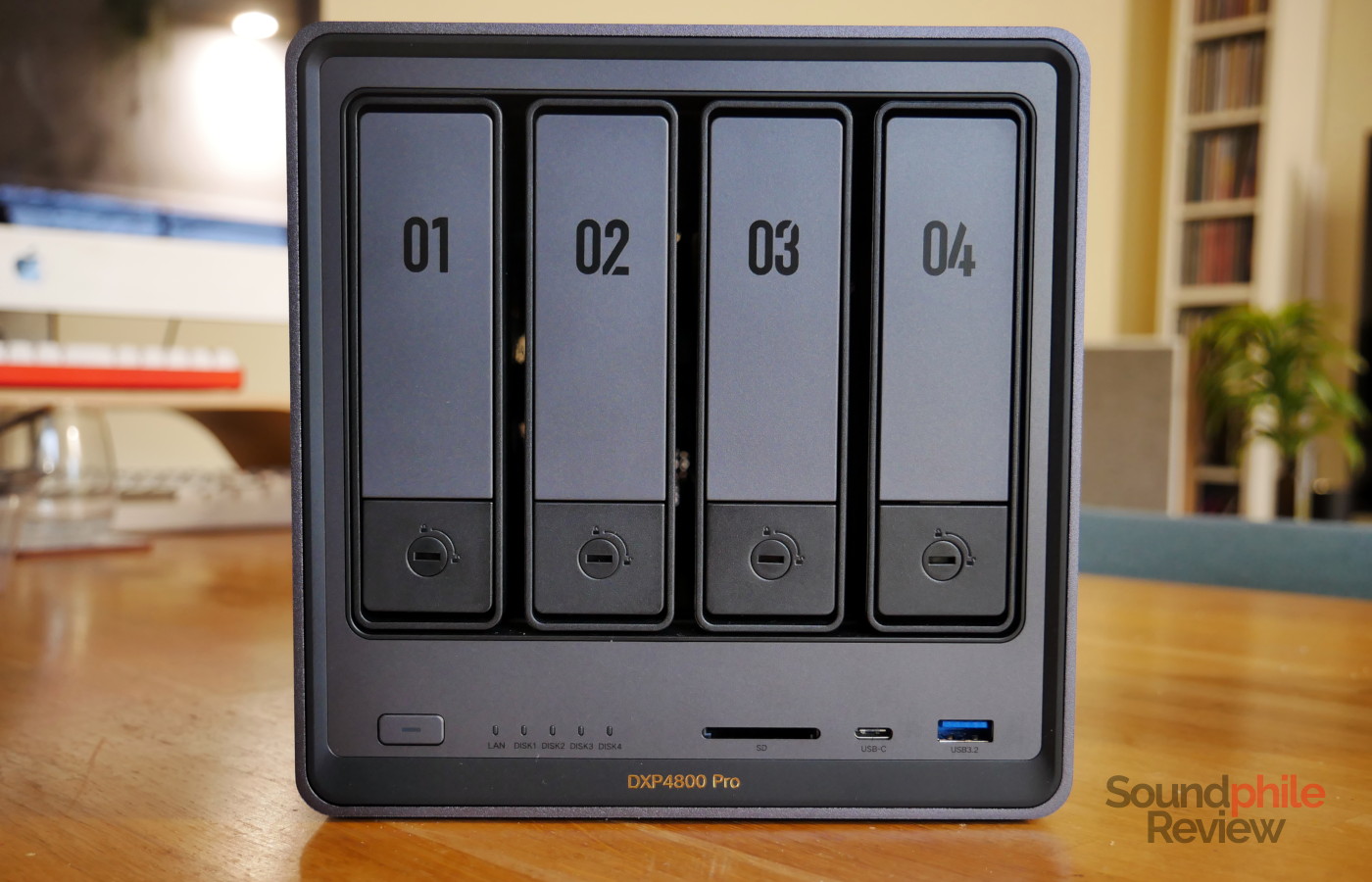
The front hosts the four drives bays, the power button, five status LEDs (one for network and four for drive activity), an SD card reader, a USB-C and a USB-A (both 10 Gbps) ports. The NAS is relatively large, at 17.7 x 17.7 x 25.7 cm, especially in terms of height.
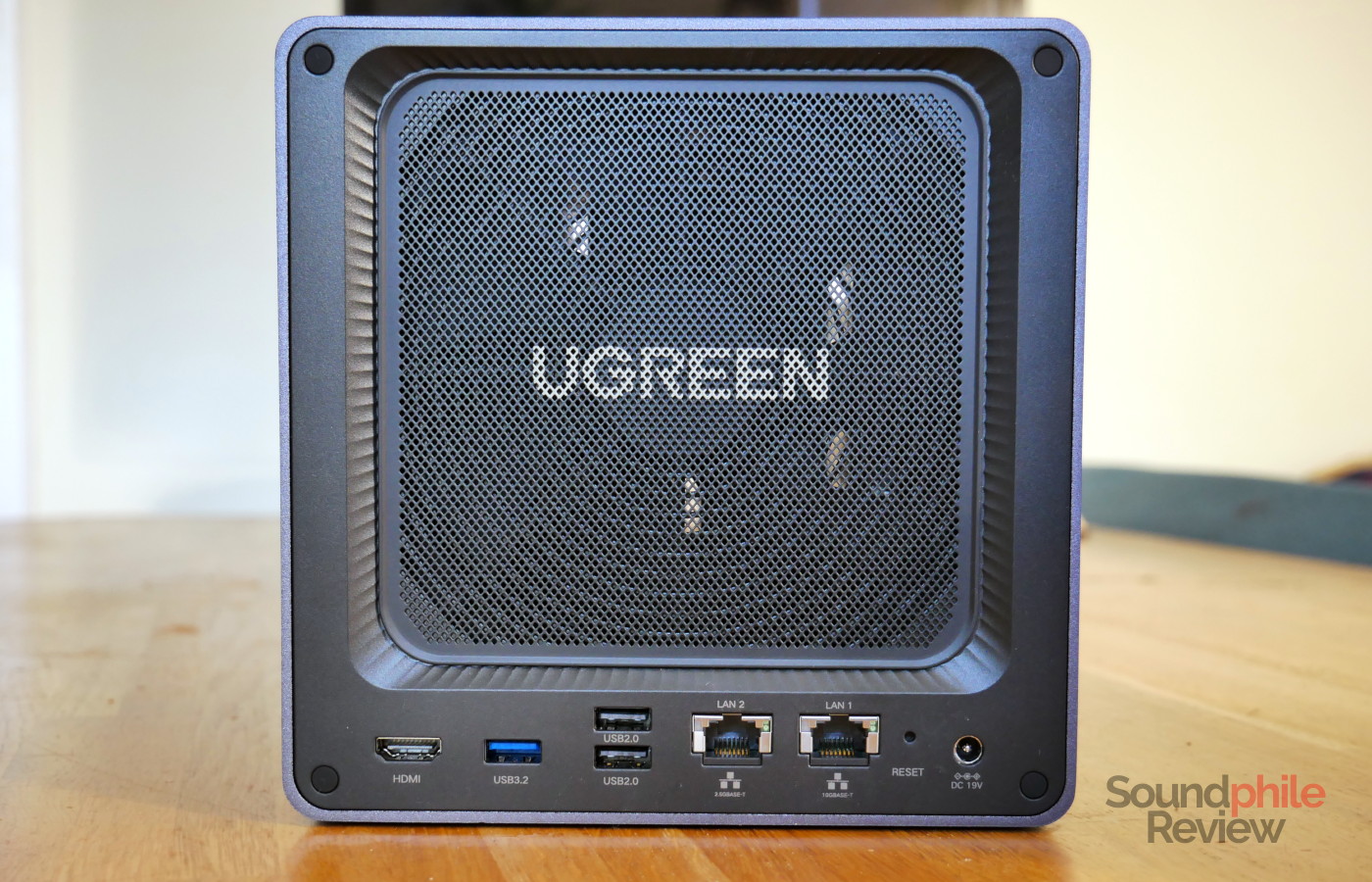
On the back we find the 120 mm system fan with a removable metal grille that acts as a filter (the airflow is from the back to the front, contrary to virtually all other manufacturers), plus all the various connectors: HDMI (capable of 4K @ 60 Hz), USB 3.0 (5 Gbps), two USB 2.0, one Ethernet 2.5 Gbps and one Ethernet 10 Gbps, plus a reset button and a power connector.
Build quality is excellent and all parts fit perfectly. Trays slide in and out very smoothly, which is normally a great indicator of how well a NAS is made. The grille on the back is magnetic and can be easily removed for cleaning.
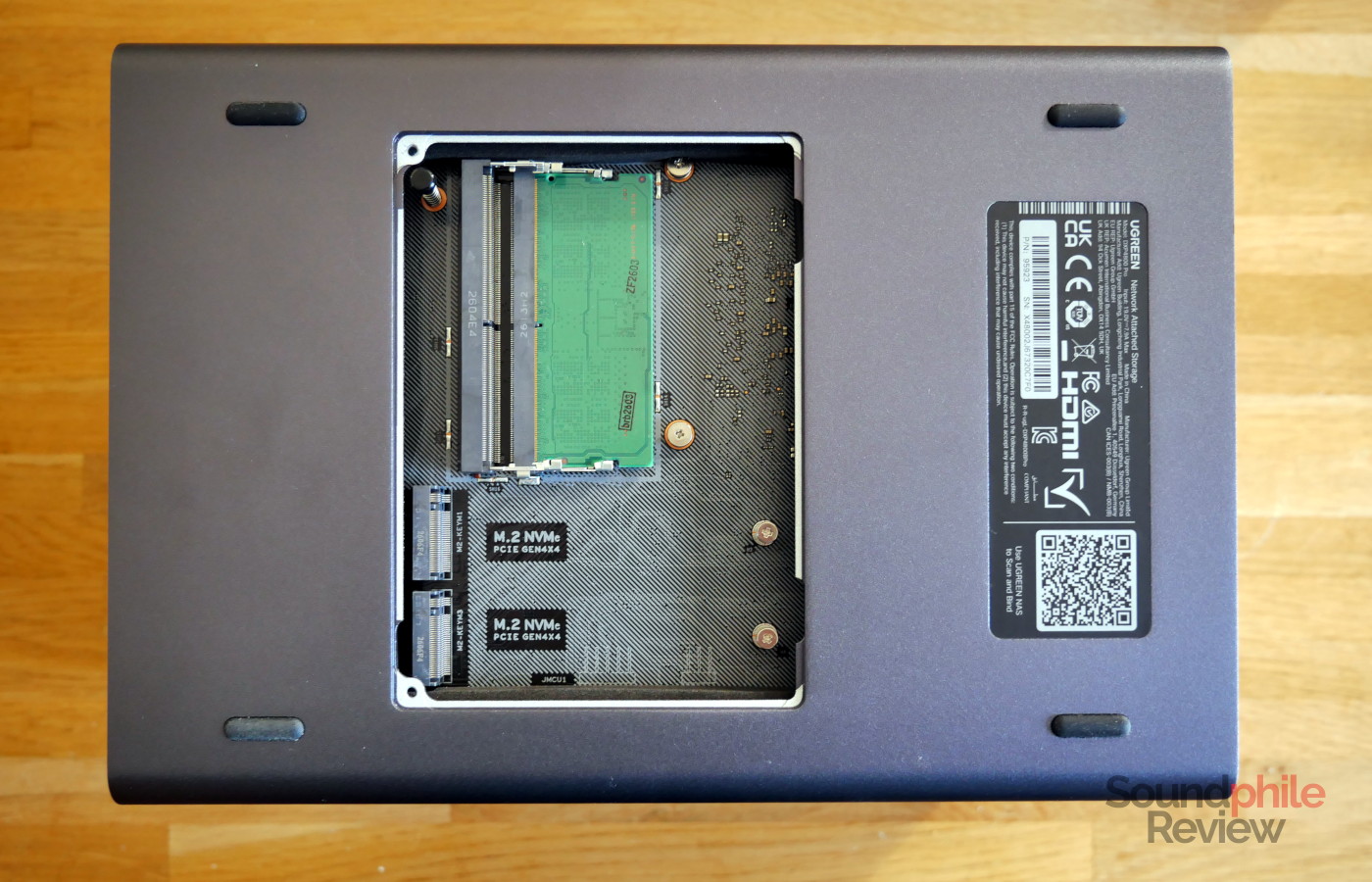
Looking inside the case, the UGREEN NASync DXP4800 Pro features an Intel Core i3-1315U which features two performance cores and four efficiency cores, for a total of 8 threads operating at a maximum frequency of 4.5 GHz; it is cooled by its own fan. It also features an Intel UHD GPU with 64 cores operating at a maximum frequency of 1.25 GHz, capable of supporting a maximum resolution of 4K at 60 Hz over HDMI. We also find 8 GB of DDR5 RAM on a SODIMM module; this can be expanded to a maximum of 96 GB using two modules. DDR5 RAM offers better performance than DDR4, but is also significantly more expensive at the moment. There is a 128 GB NVMe SSD for the operating system, plus two other M.2 slots (PCIe 3.0) for further NVMe drives.
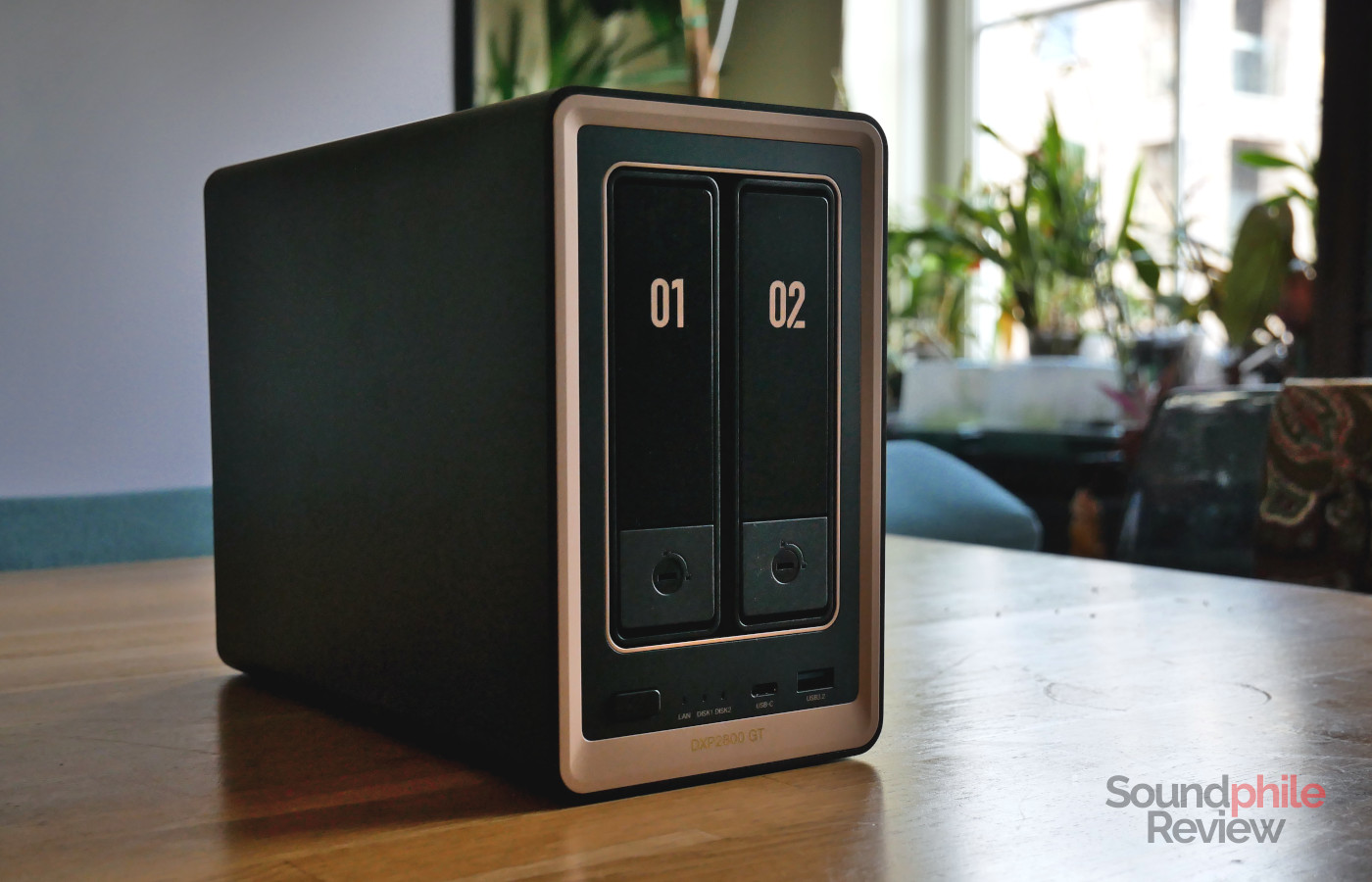
The main advantage of using an Intel processor over an AMD one (like on the DXP2800 GT) or an ARM one is that it offers much better transcode performance and compatibility with a wider array of codecs.
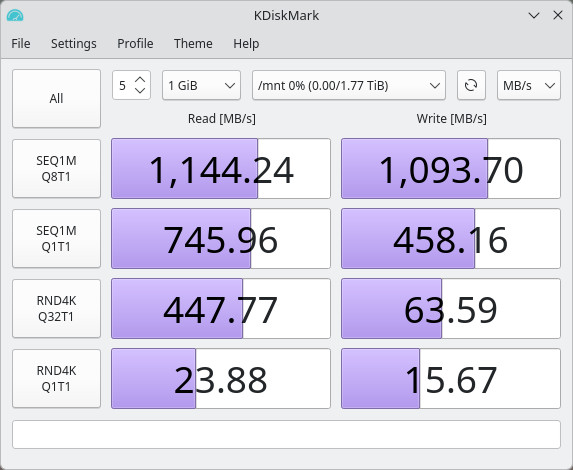
File transfer performance is excellent. I tested the NASync DXP4800 Pro with two 2 TB WD Red Pro drives and it completely saturates the 10 Gbps connection, reaching 1,144 MB/s while reading and 1,093 MB/s while writing, which means that you can take full advantage of the higher-speed connection if you have it available.
UGREEN NASync DXP4800 Pro Software
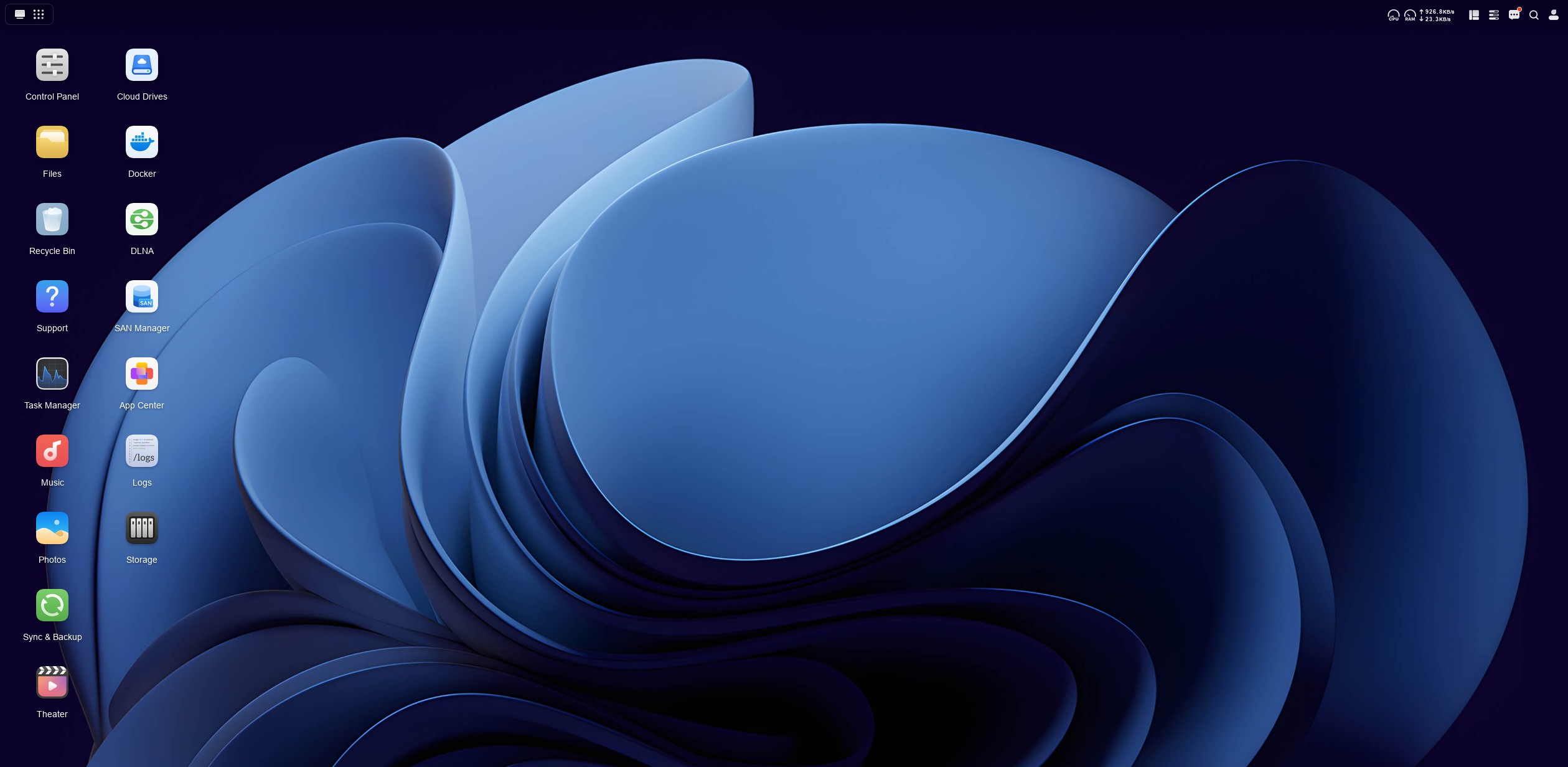
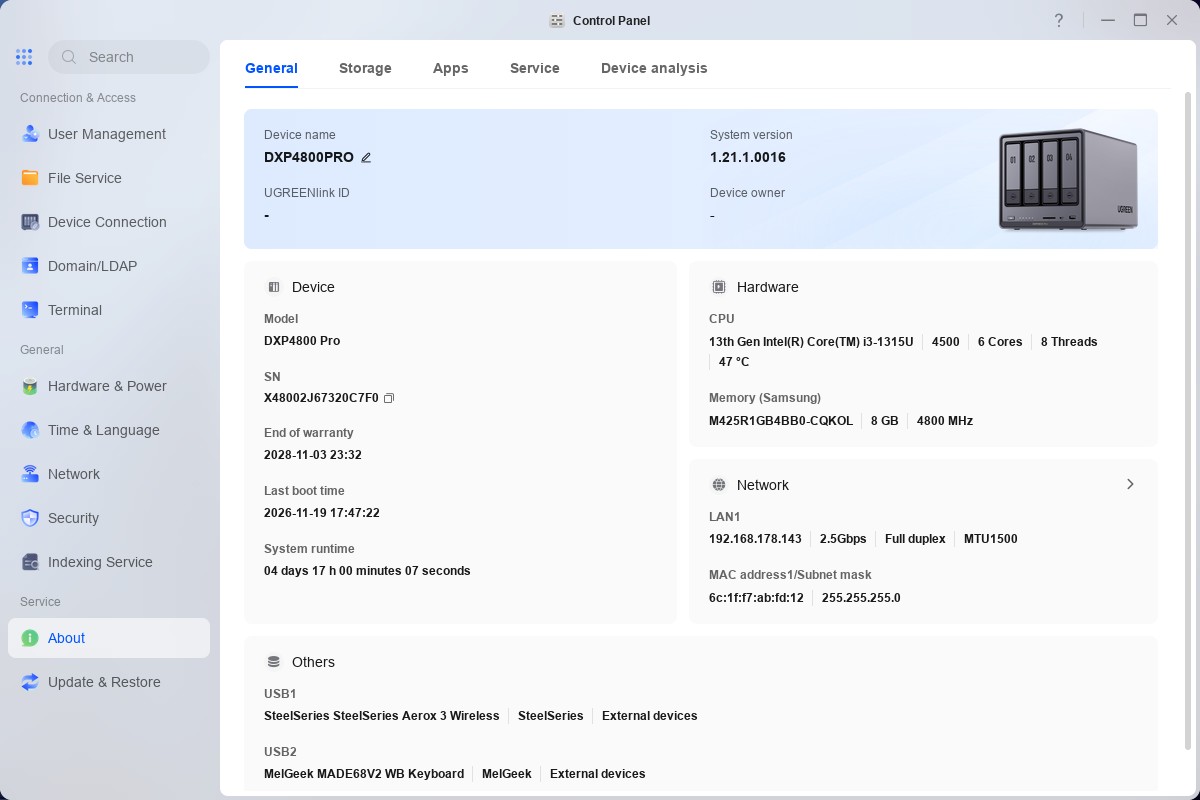
The UGREEN NASync DXP4800 Pro uses the UGOS Pro operating system. This is a Linux-based OS which features a Web interface to allow you to control the NAS easily. The UI closely mimics that of a desktop operating system, complete with movable windows and a desktop with icons. This makes it really easy to use the device for anyone with an even passing familiarity with a computer.
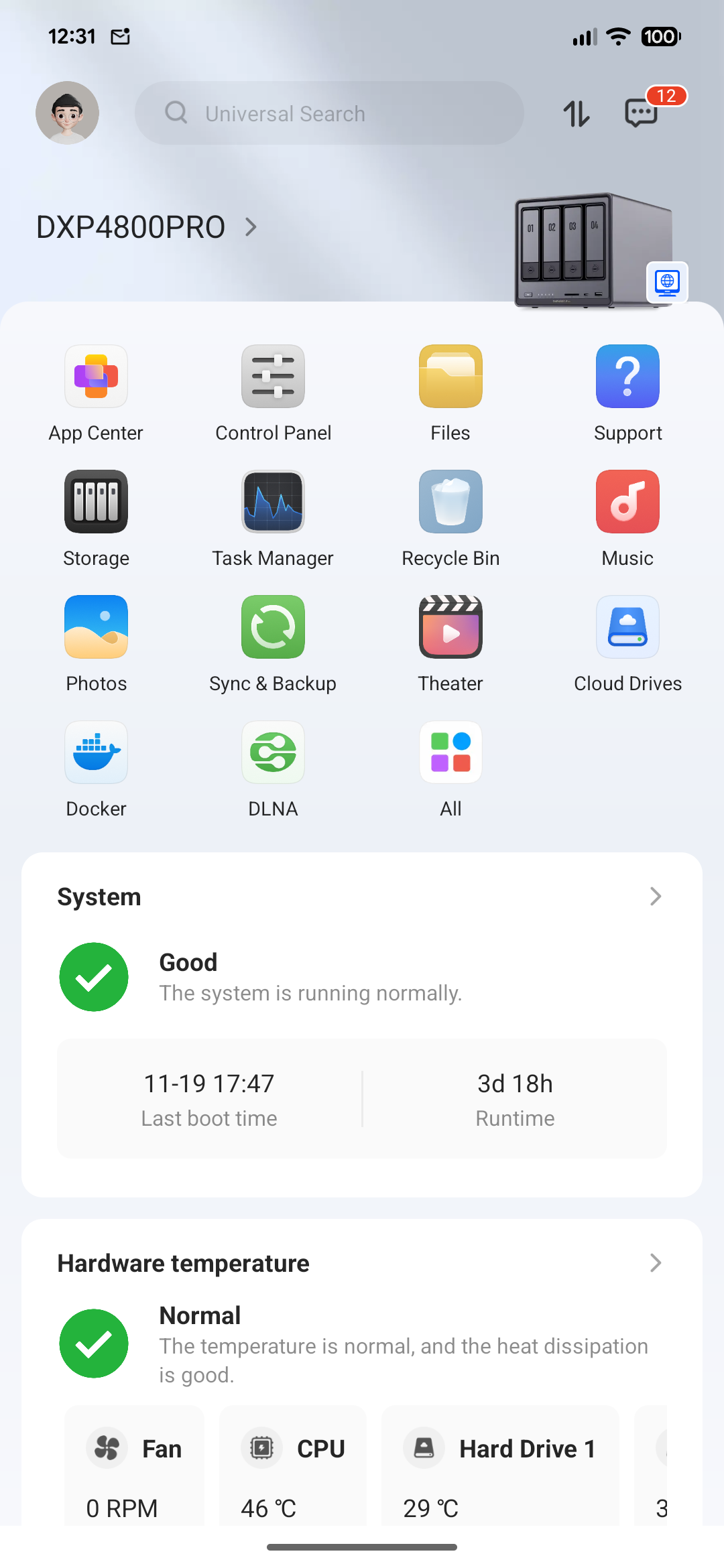
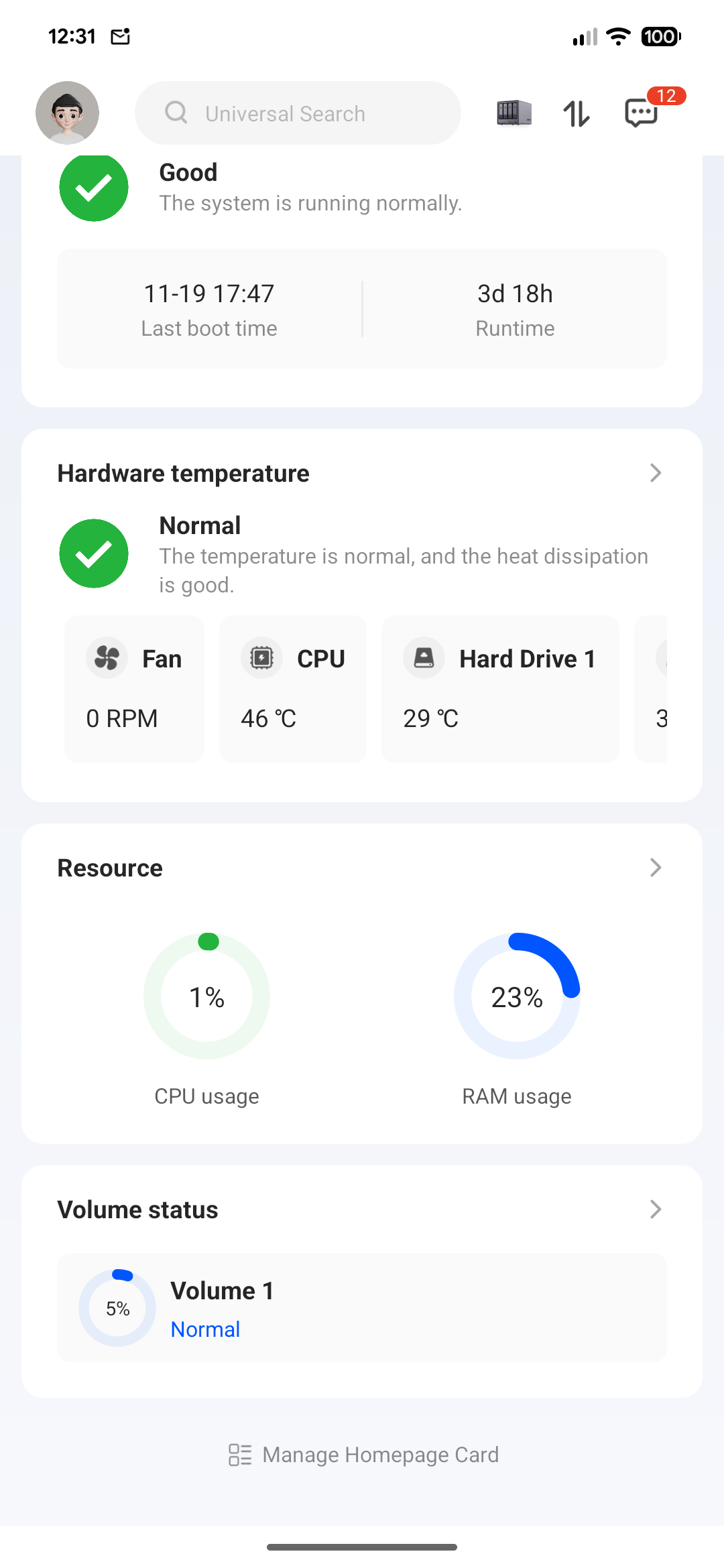
There is also an application for Android and iOS that allows you to control all settings of the NAS directly from your smartphone or tablet. You can interact with most functionality and applications directly from the app, without the need to use your computer; this is a significant advantage in case you want to quickly adjust some settings or to access your content from your smartphone. Interestingly, the app allows you to set up network shares, manage users, and even tweak power management and update the NAS’ firmware. You can virtually operate the NAS without needing a computer!
The application also allows you to automatically back up all pictures and videos you shoot using your phone directly to your NAS, which is extremely convenient as it ensures you save your pictures while maintaining full control of your data.
You can set up the NASync DXP4800 Pro on first boot by either using the application (which allows you to scan for devices on the local network) or by connecting to find.ugnas.com from your computer. The setup process is very easy to follow and does not require any technical knowledge; you can set up a user account, create a volume (you can choose between the ext4 and Btrfs file systems; the latter is more advanced and gives you more data protection tools) and then install the OS.
The default applications only give you basic functionality to share and access file over the local network. Through the App Centre, you can install further applications that give you access to a lot of additional functionality: as an example, Music, Theater, Surveillance Centre, and even OpenClaw.
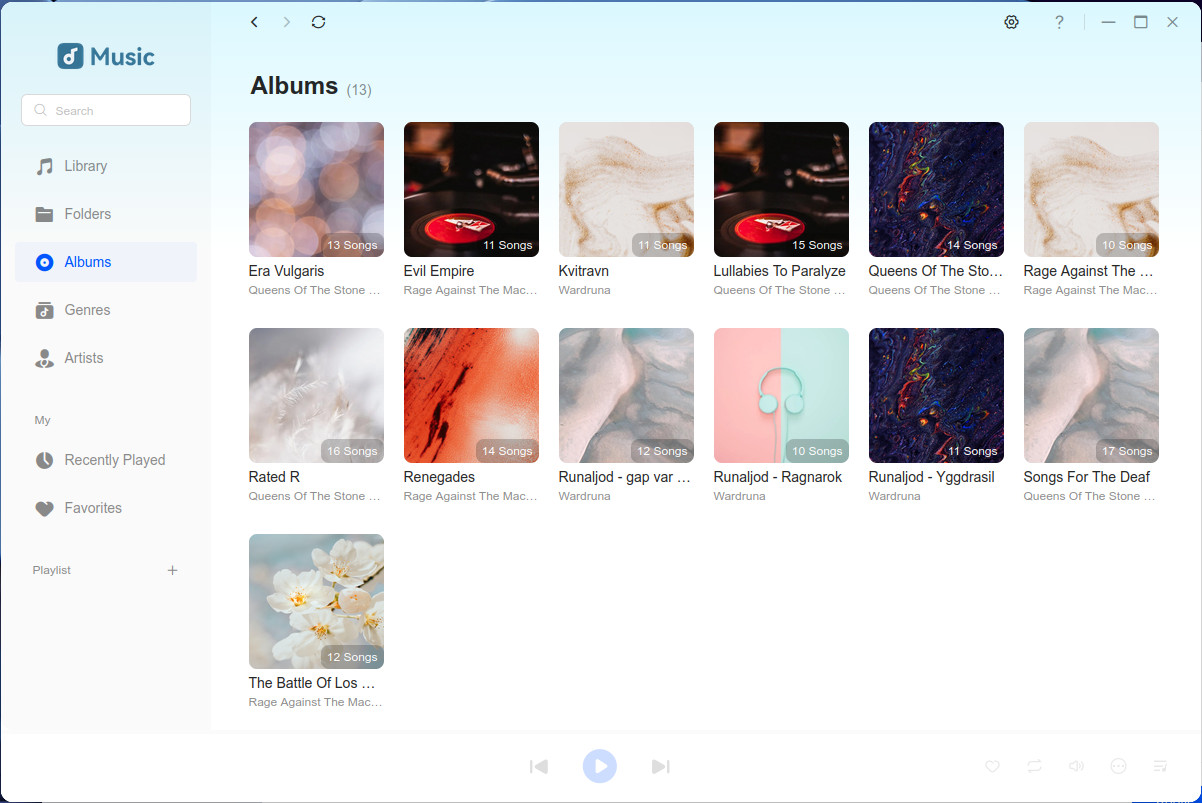
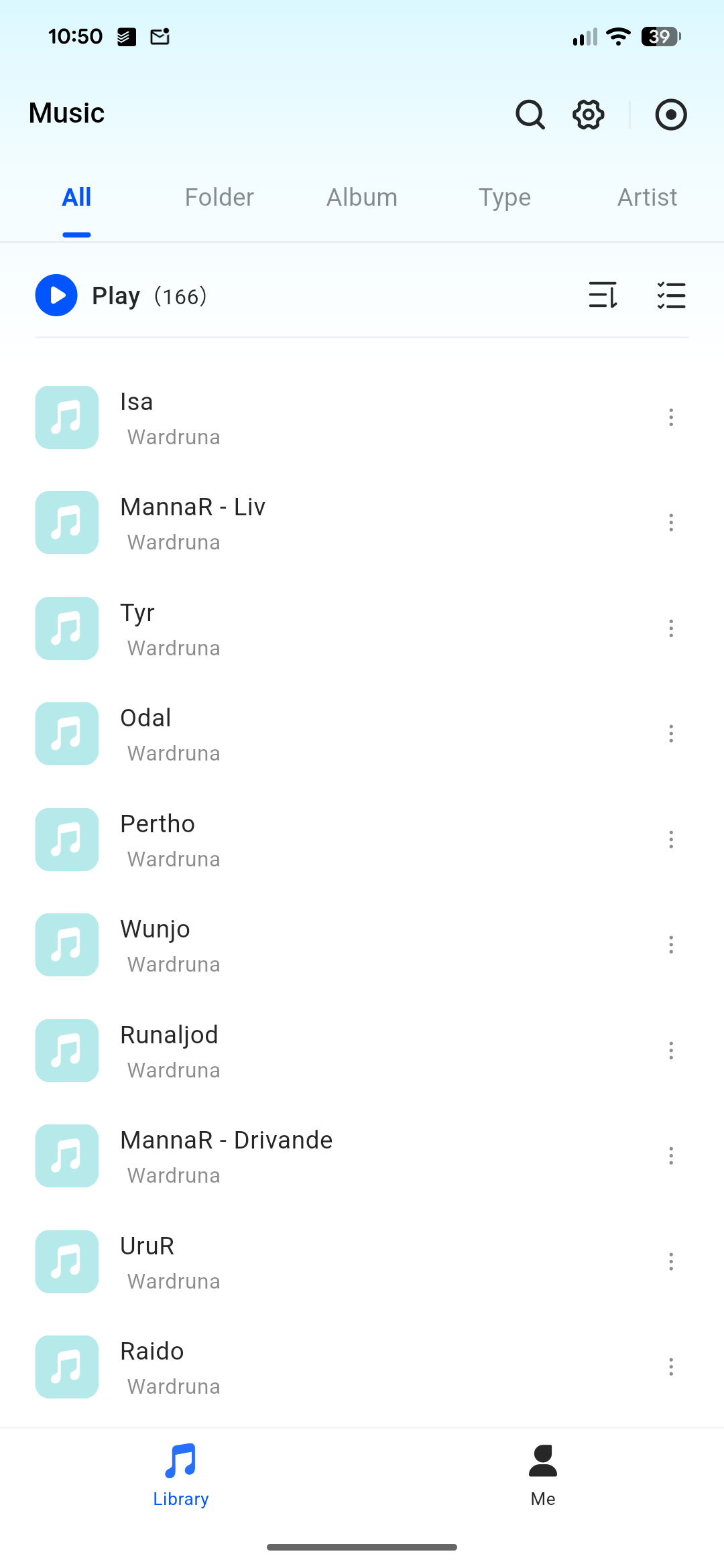
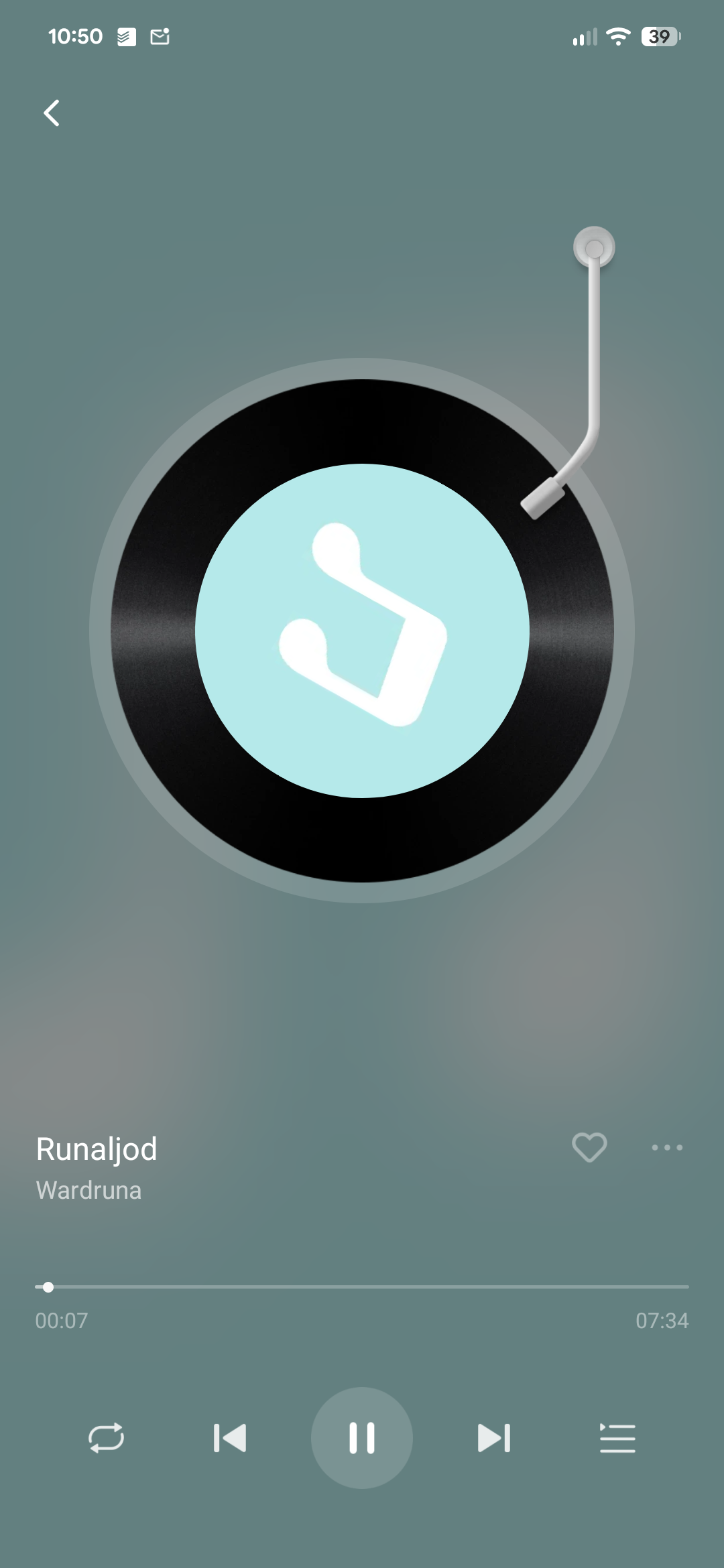
We’ll focus on the two applications relevant to this blog – Music and Theater, respectively to manage your music and your video content. The Music app allows you to access your music from your phone and computer easily. You just need to select the folder(s) where you store your music and the system will automatically scan it. The interface makes it possible to manage your collection by editing the information of individual files (title, artist, album, genre, year, disc number and track number) as well as to create playlists. A small shortcoming of the application is that it does not allow you to manage playback through the system’s interface, at least on Android, so you need to open the UGREEN NAS app and manage it from there every time you want to pause or play something. Another is that it seemingly doesn’t automatically use cover images saved in the folders.
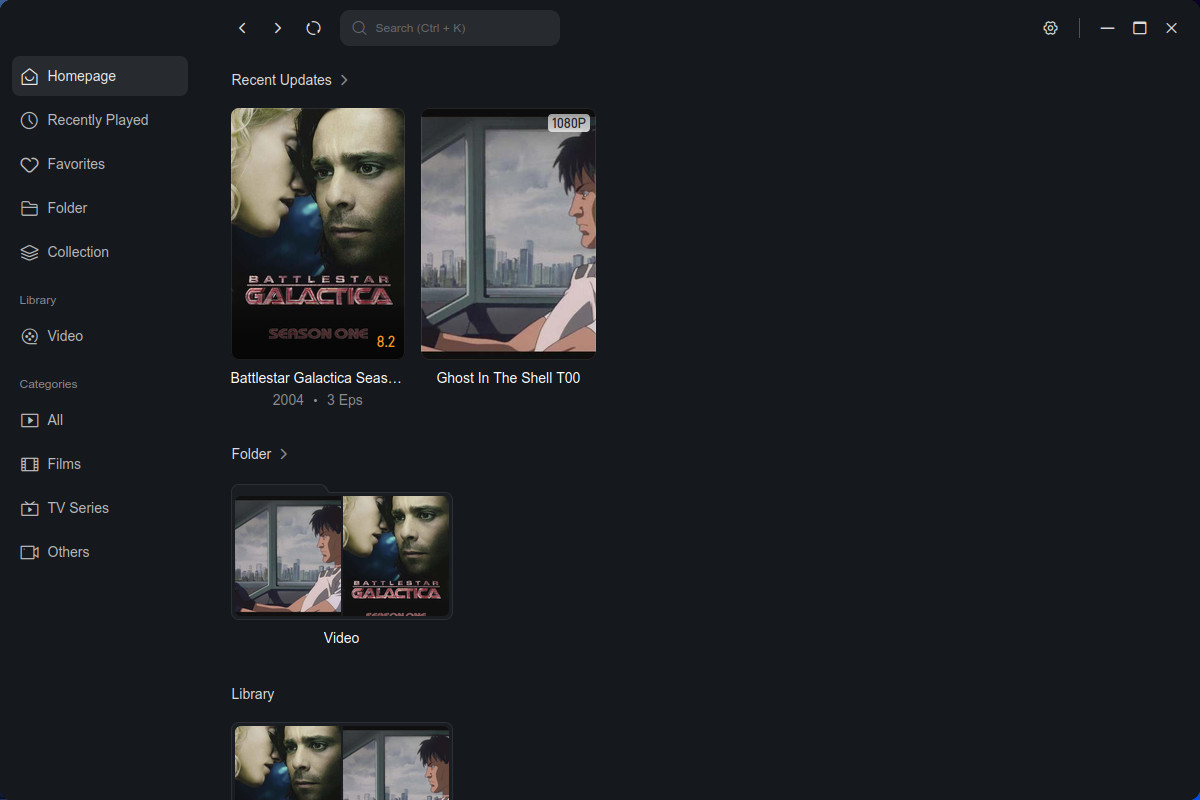
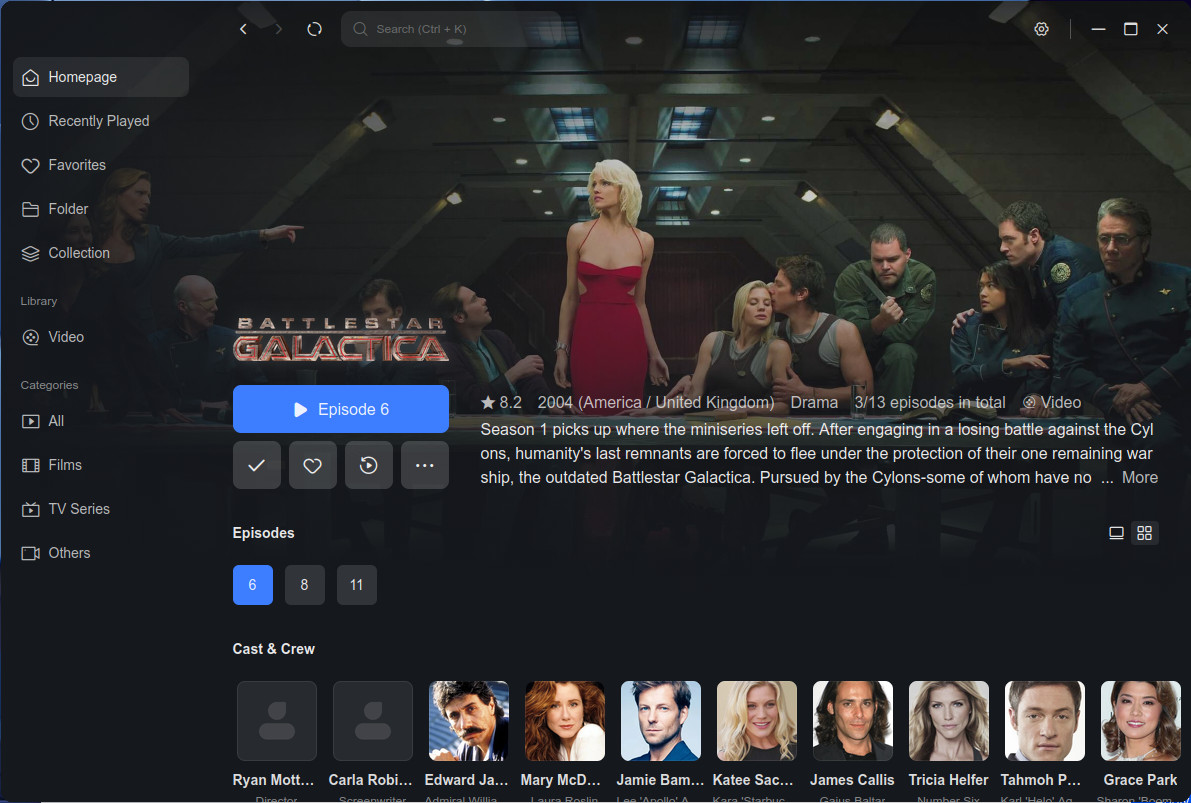
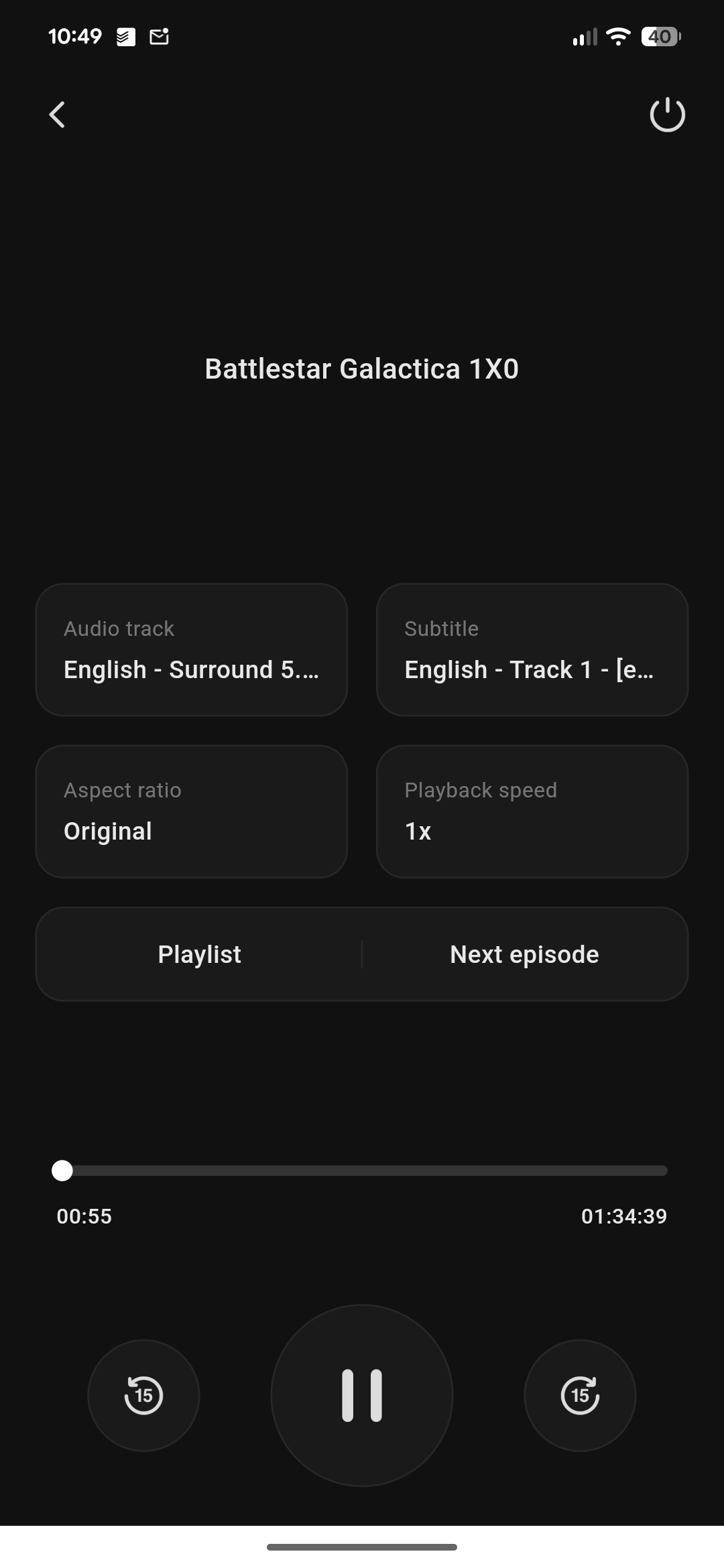
Theater is the app you can use to manage your collection of video files, such as movies and series. It offers an intuitive interface that groups the episodes of a series together automatically (though you can always override this manually), makes it easy to edit the information of the media files (e.g. you can specify title, year, country, genre, rating, description, and cast and characters), and makes it easy to pull information from The Movie Database (TMDB) if you supply it with an API key. On your phone, you can use the Theater app as a remote to control playback when you use the NAS’ HDMI output. You can also control the NAS in HDMI output mode using the “HDMI output” application, which allows you to navigate the interface.
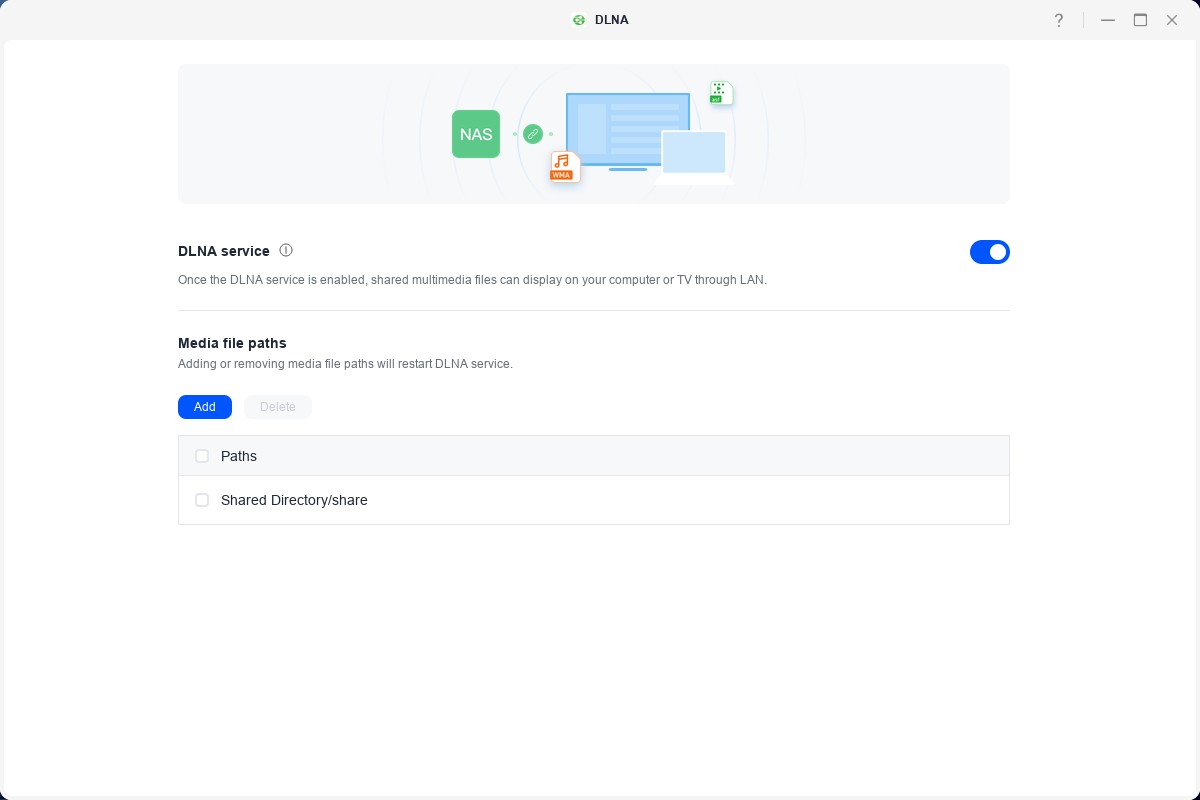
In order to share content over the network, you need to install the DLNA application, which is its own separate thing. Installing it enables casting of content over the local network. Once installed, you can simply access your content directly from whatever DLNA-enabled device on your network (e.g. TVs and connected speakers). You can select individual folders to share, so that you have granular control over what is available over the network.
On top of the various applications that UGREEN develops, you can also install Docker and access the wide variety of applications that you can install through that. As an example, UGREEN has included Jellyfin as an application you can download and configure directly from the App Center without fiddling with Docker configuration. As I am writing this, UGREEN has recently updated their own packaged version of Jellyfin to a more recent release (12.2); although the company is slower in updating the application than upstream, they do provide updates over time. In any case, the availability of Docker allows you to take advantage of the full catalogue of applications, both for personal and business use, that the ecosystem provides, which includes applications in the media, backup (e.g. Borg UI), smart home (e.g. Frigate, Home Assistant) and cloud storage (e.g. Nextcloud) categories. This does require a minimum of technical skills, however, which may not be everyone’s cup of tea.
Last, but not least, UGREEN has made it quite easy to replace the operating system: you can install another OS (such as TrueNAS or OpenMediaVault) directly on the SSD provided by UGREEN, or you can disassemble the device, take out the SSD and put your own in. The UEFI system allows you to boot other operating systems without limits and everything should work out of the box.
Sound
As someone with a background in computer science, I do not agree – strictly on technical grounds – with people who talk about the influence of the storage medium on sound. To put it politely, that’s nonsense. Still, a NAS does produce sound through its fans and the operation of the hard drives (if any are being used). In the case of the UGREEN NASync DXP4800 Pro, the fan is very quiet when the device is idle. It does become louder when pushed to its maximum, though it is still relatively quiet in absolute terms. Still, especially if you are using mechanical drives, I wouldn’t keep the NAS in the same room as the rest of your system, as it is loud enough to be audible in a quiet room, especially if you are doing transcoding or other intensive operations.
Final Thoughts
The UGREEN NASync DXP4800 Pro has everything one needs: great hardware, lots of expansion possibilities and solid software. UGREEN has done an excellent job with design and the actual “hardware” bits – as in, the chassis, the drive trays and so on. The DXP4800 Pro is very solidly built and stands out positively compared to competitors from other brands such as QNAP and Synology. When it comes to hardware in the sense of components, the device stands out due to its high-level specs, which include fast connectivity up to 10 Gbps. This ensures that the NAS can scale with the network infrastructure you have available.
The operating system is very intuitive and easy to use, and it has a growing catalogue of applications (both first- and third-party); while it’s not as polished and refined as that of competitors, especially Synology’s DSM, it is maturing very fast and it already offers a compelling experience. The availability of Docker ensures that you can further expand the device’s features and functionality.
I’m really impressed by the UGREEN DXP4800 Pro. It’s a very solid device with a lot to offer. It does command a premium compared to other devices, such as UGREEN’s own DXP2800 GT, but it also does offer more. At $639, I feel like the more powerful hardware and the higher flexibility are worth the additional expense. If you need four drive bays to hold a large media collection (or a lot of data, anyway), the DXP4800 Pro should be among your top options.